
Teams
In Moodio you can create a team, so that several people can work on projects together.
After you create a team, you can invite people to join it, so team members can work together more efficiently.
Create a team
From the Moodio home page, go to Teams
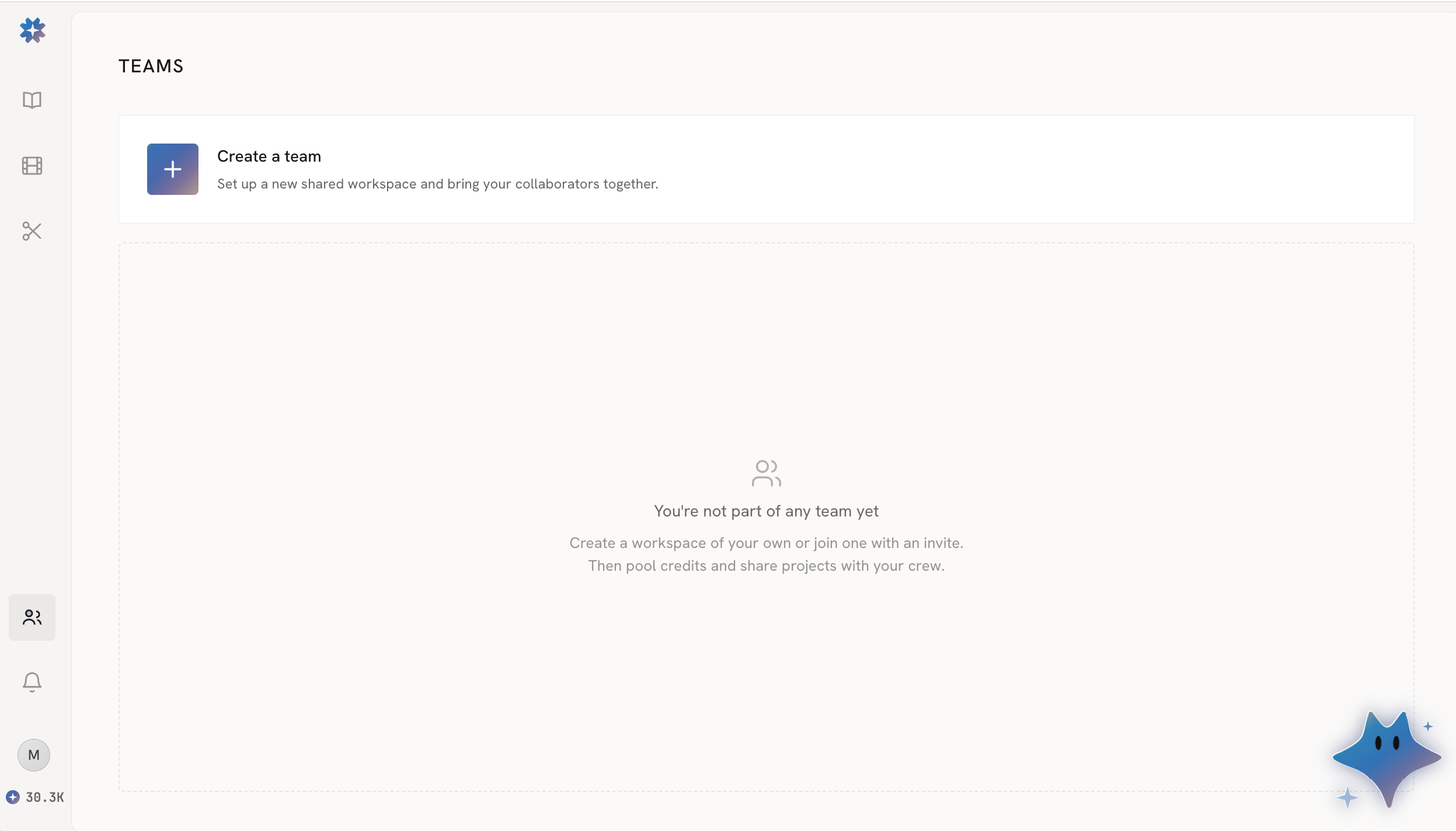
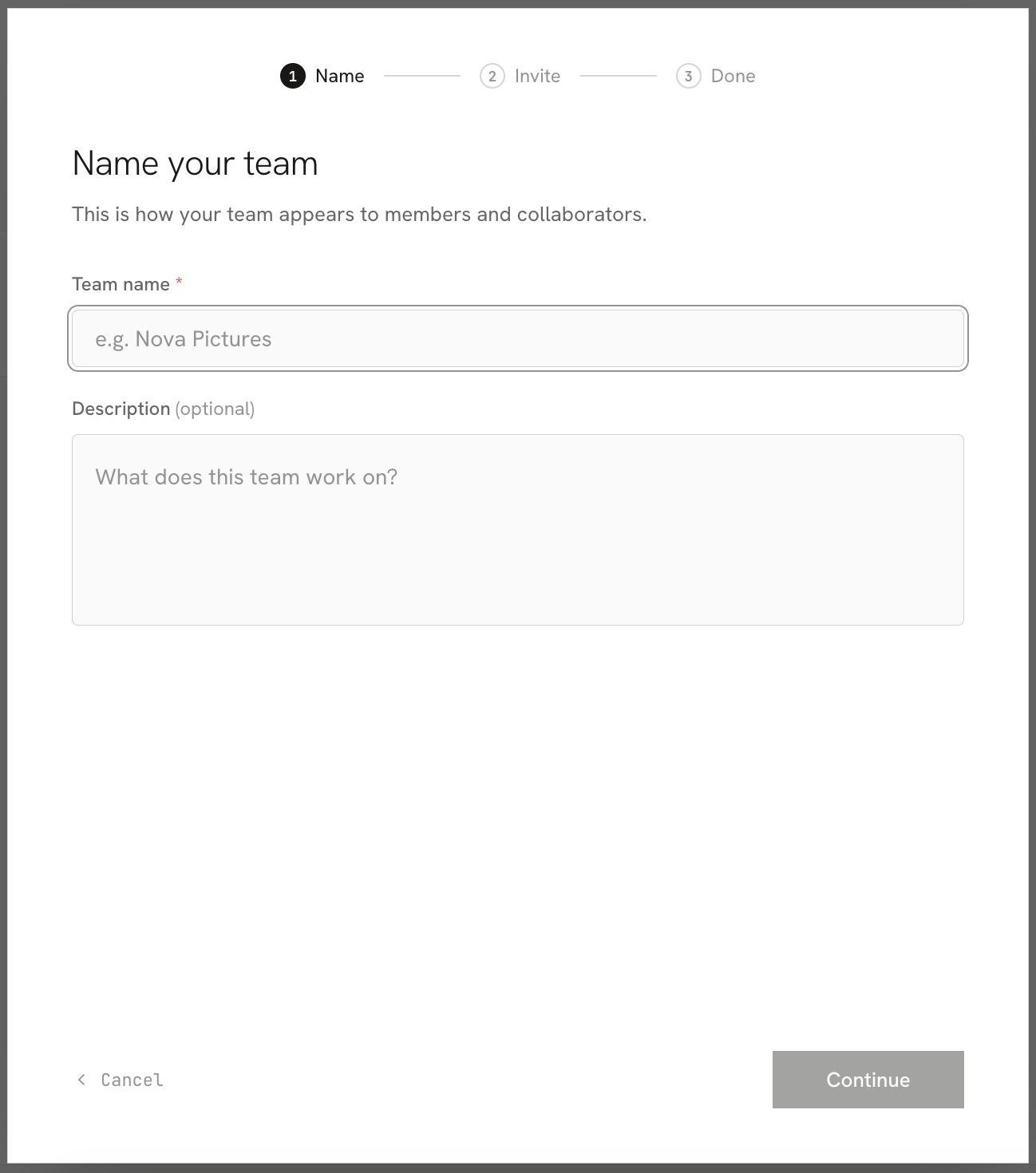
Click Create Team and fill in the team's details
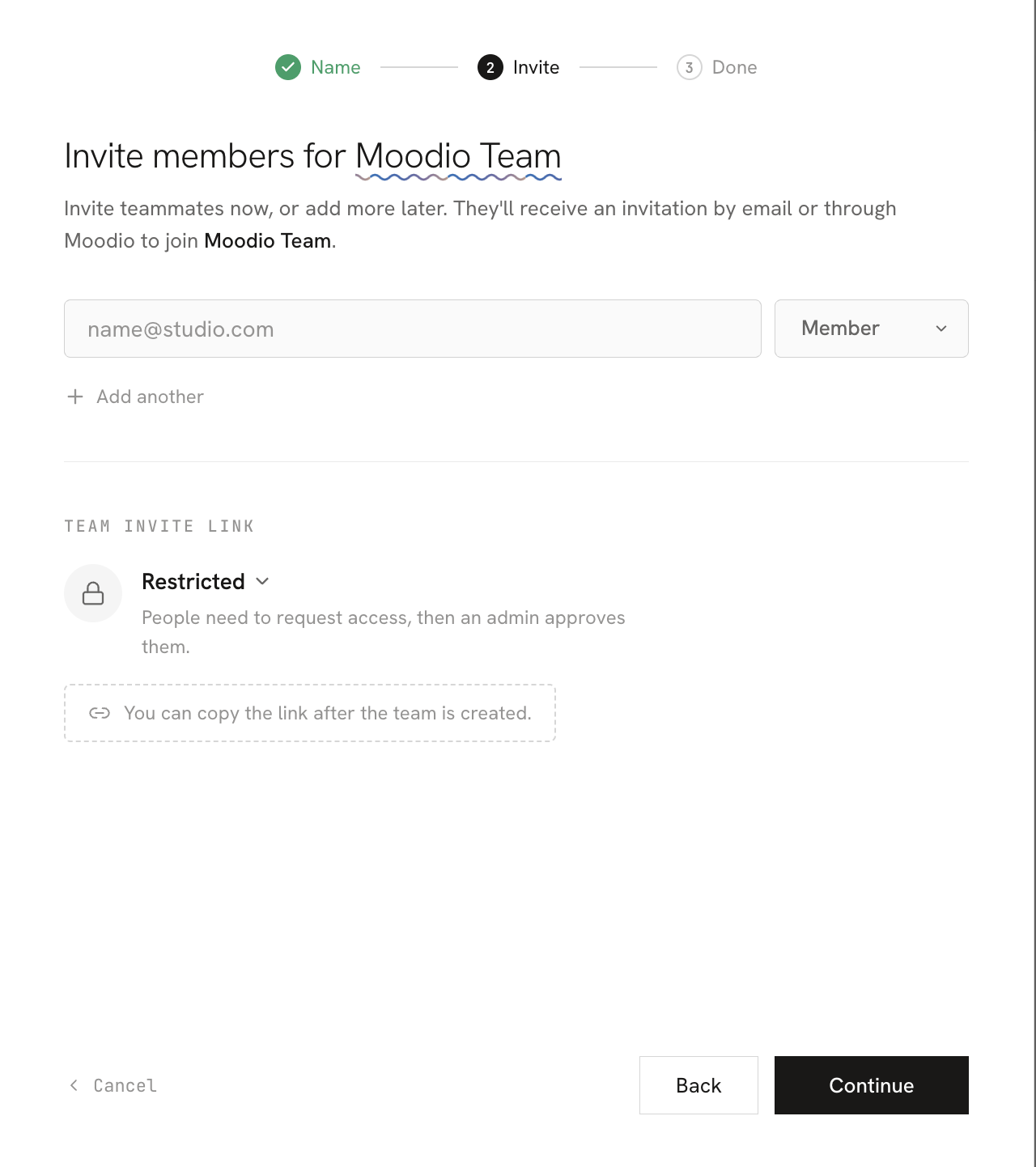
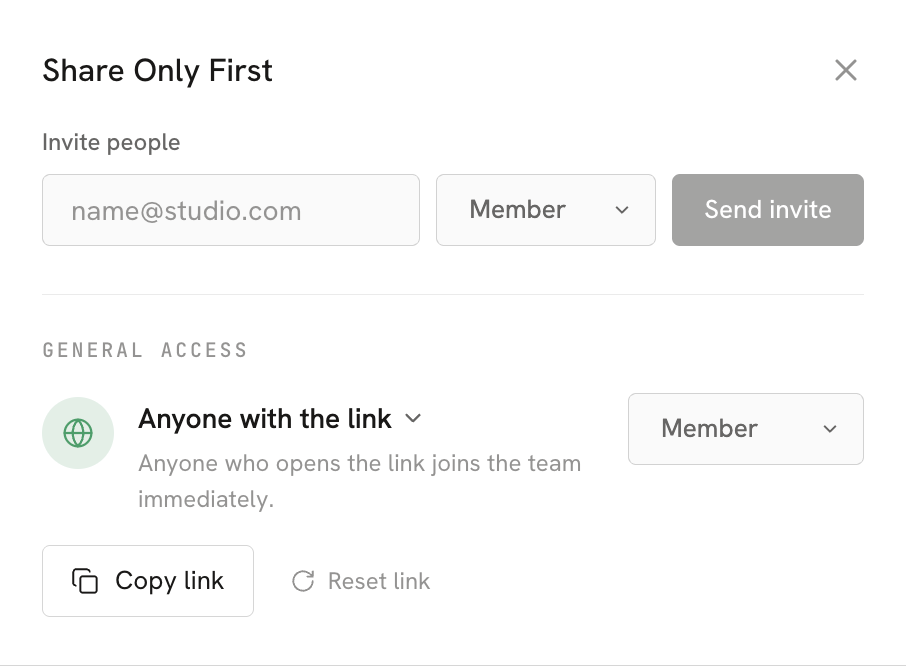
Search for each person by their account email, and set their role to Admin or Member. You can also choose the access setting for the team link.
The team is created
Manage a team
After the team is created, you can open the team management page.
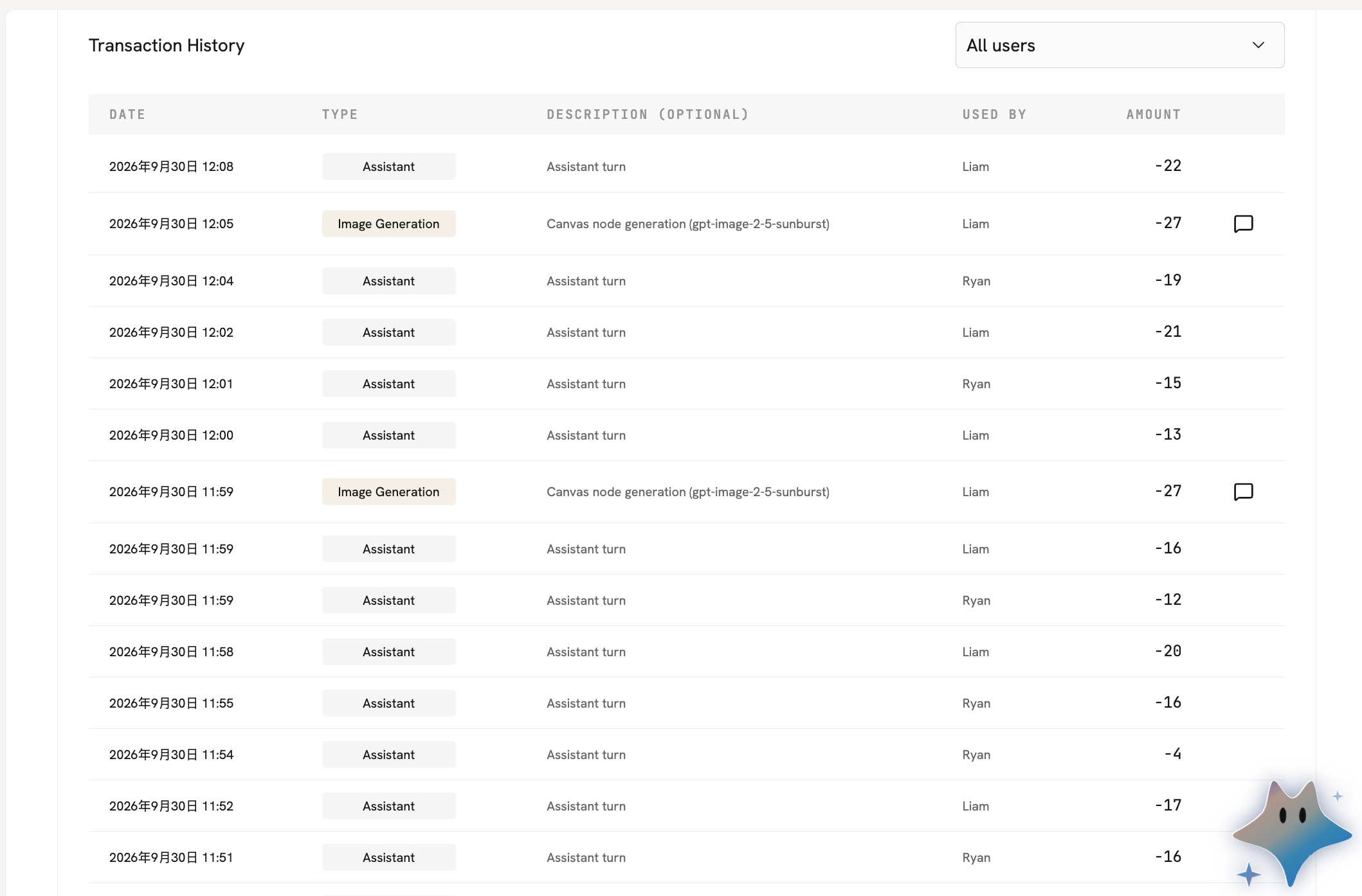
- Manage credits
Buy credits for the team and see the history of how credits were used.

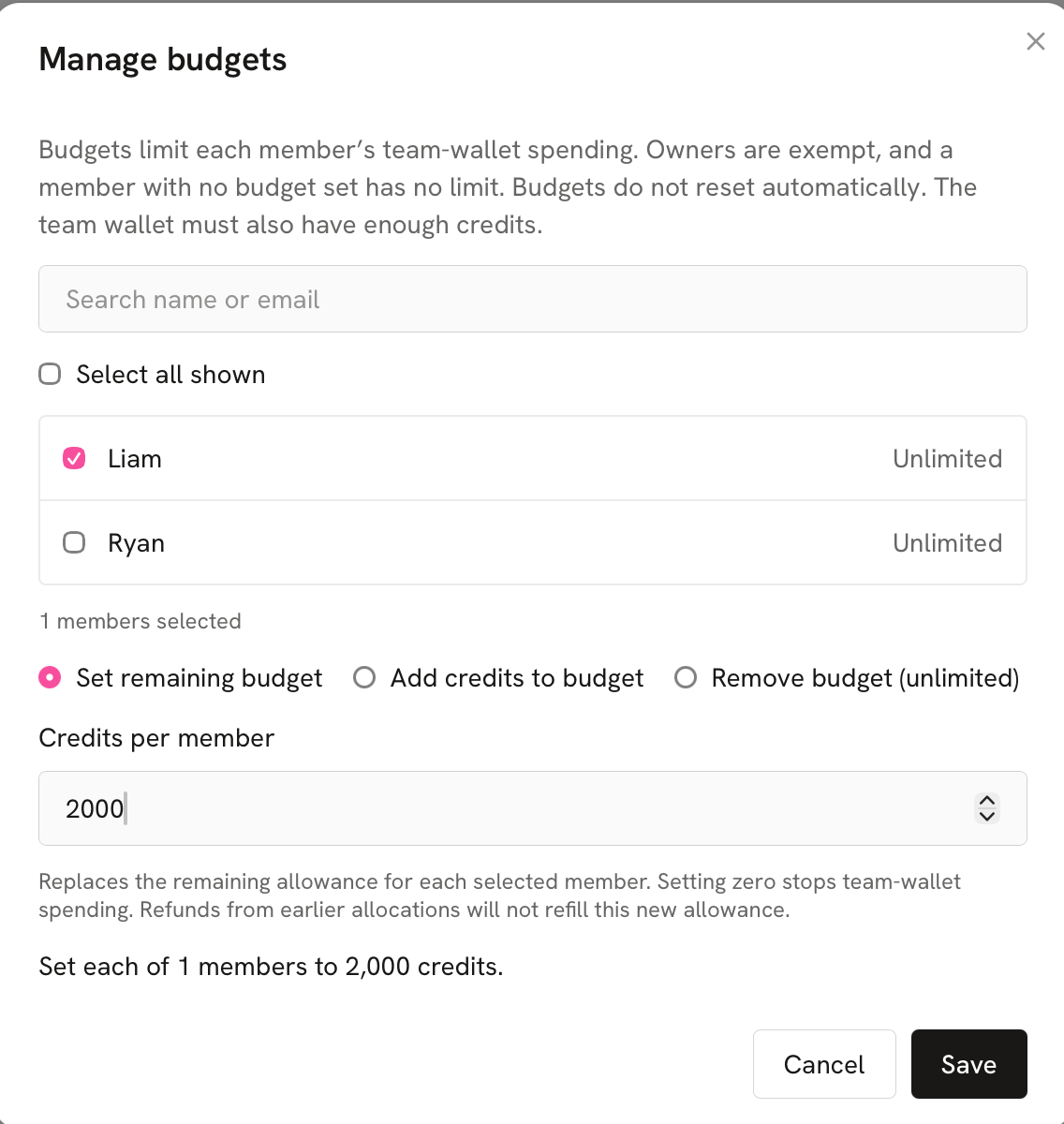
- Manage budgets
Budgets limit how much each member can spend from the team wallet. The team owner has no limit, and neither does a member who has no limit set.
- Invite new members and copy the team link, with the permissions you choose
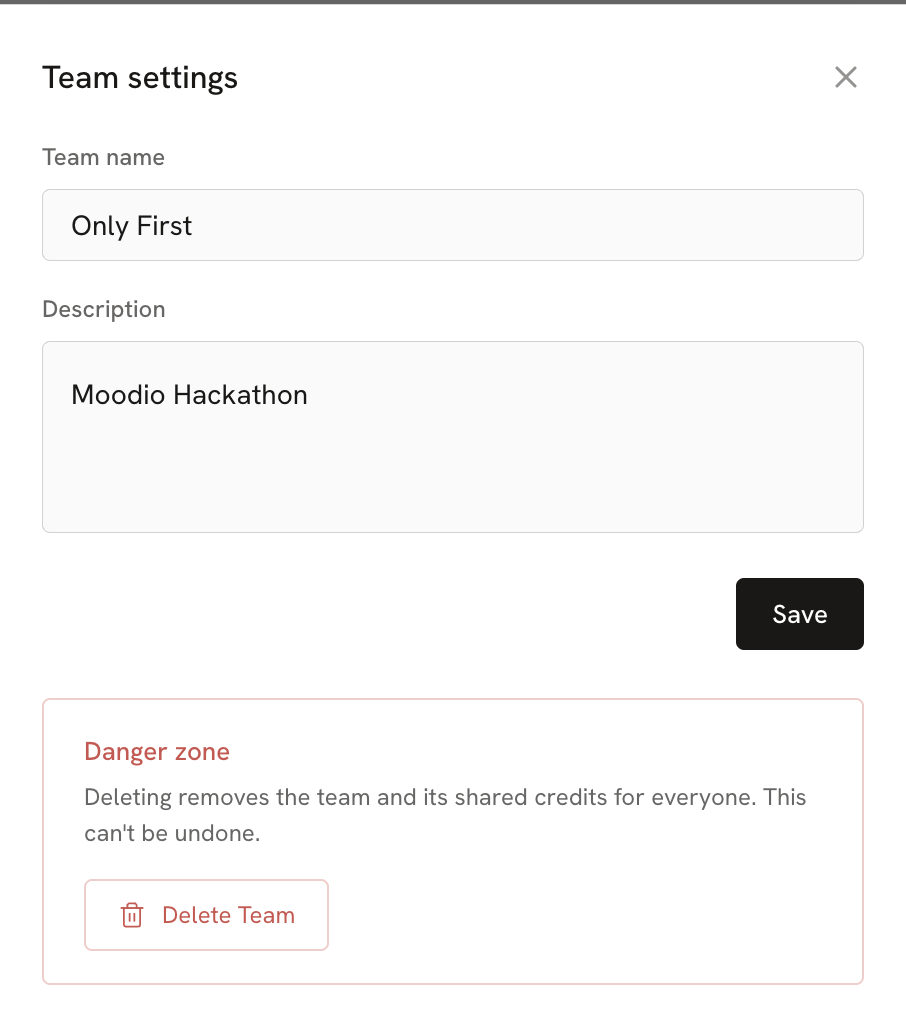
- Click the Team settings button in the top-right corner to edit the team's name and description
- See the team's members and change their permissions
You can make a member an admin or transfer ownership to them.
- Handle the team invitations you have sent and requests to join
- Create or view team projects