
Assets overview and asset cards
The Assets overview page shows all the assets in your project together, as asset cards. From an asset card, you can quickly see the asset's details, open its Asset Canvas, create variants of it, and manage it.
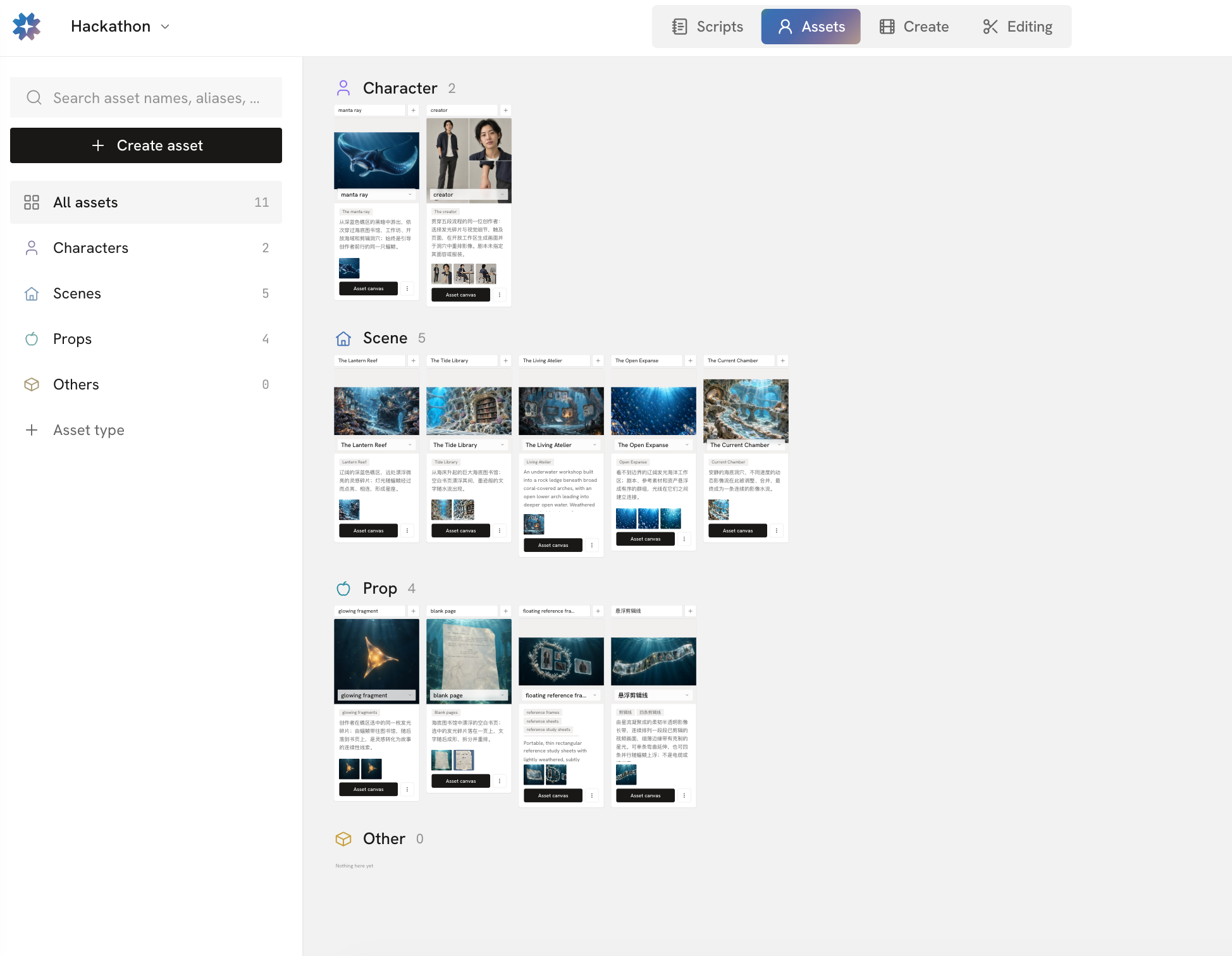
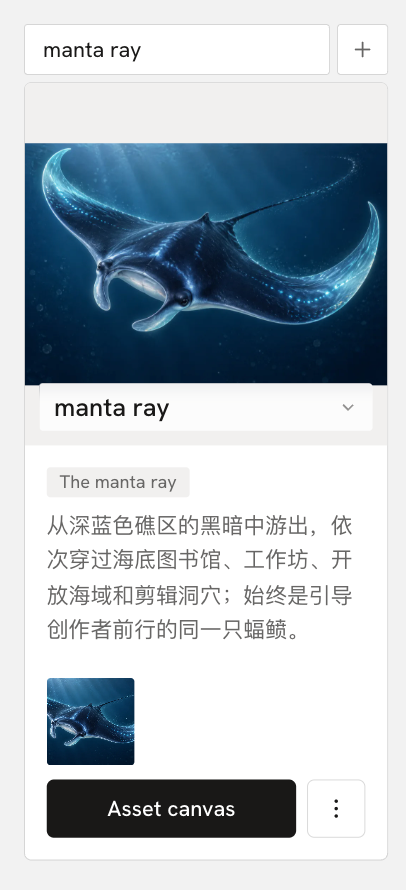
What an asset card shows
Each asset card shows basic information about its asset:
- Asset name: Shows the name of the asset.
- Asset description: Describes the asset's traits, design, or purpose.
- Cover image: Serves as the main picture on the asset card.
- Reference images: Shows the generated images marked as references for the asset, so you can quickly see what it looks like.
With this information, you can quickly tell assets apart and understand them on the Assets overview page.
Create asset variants
As you work, one asset may need different versions or forms. For example, the same character may need different clothes, expressions, conditions, or looks.
An asset variant is a different version made from an existing asset. It keeps the original asset's basic design while you explore a different way to show it.
You can create a variant in either of these ways:
Click the
+next to the asset name.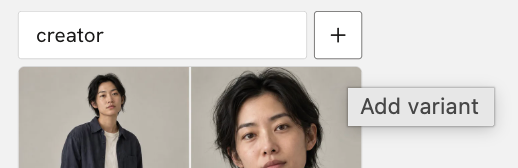
Use the asset name area in the middle of the asset card to view and create variants.
After you create a variant, it is managed as part of its asset, so it is ready to use for different purposes.
Open the Asset Canvas
Click Asset canvas at the bottom of an asset card to open that asset's own canvas.
On the Asset Canvas, you can add generation nodes, use references, and generate and adjust the asset.
Manage assets
Click ··· at the bottom of an asset card for more actions, including:
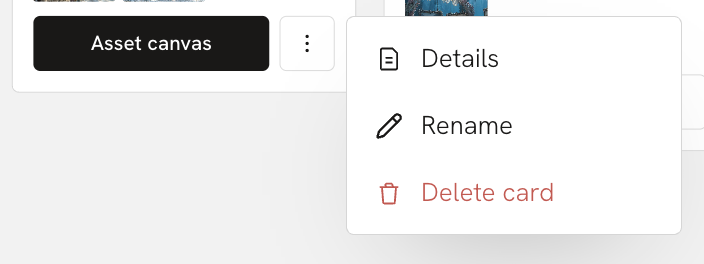
- Details, Rename, and Delete variant
Details lets you view and edit more information about the asset, including Name, Description, Status, Aliases, Selected assets, Cards (the asset's variants), and Activity.
Activity keeps a record of the important actions on the asset, so you can see who created or changed it and when. It helps your team keep track of how the asset changes.