Edit images
After an image is generated, click its image node and use the toolbar above it for more actions.

Add to timeline
Adds the selected media to the editing timeline in one click.
Mark or Approve
When the image looks the way you want, click Mark or Approve.
Once marked or approved, the image becomes the confirmed result of its generation node, ready for you to use later in your work.
Tool and Portrait

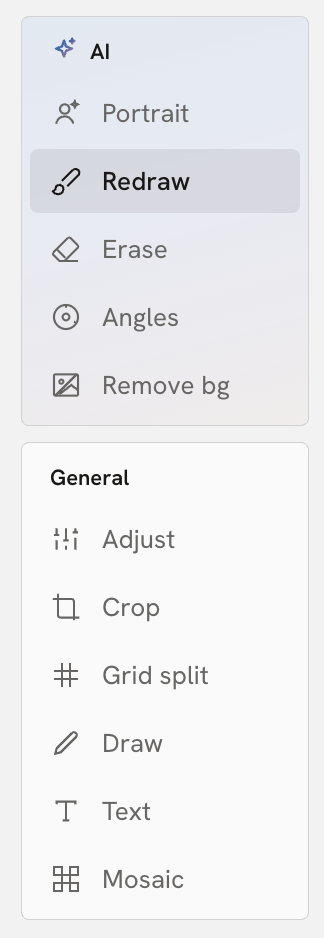
AI tools
Portrait
Improves the sharpness and quality of images of people, so their details show more clearly.
Redraw
Regenerates part of the image. Use it to change a person, an object, or a specific area of the picture. Select the area to redraw with Brush, Box, or Ellipse. Describe the change you want, choose an aspect ratio, and redraw.
Erase
Erases the content you select and fills the area to match the picture around it. Use it to remove elements you don't want. Select the area to erase with Brush, Box, or Ellipse.
Angles
Changes the angle or direction from which the picture is seen, giving a different view of the space in the image.
Drag with the mouse to turn the view a full 360 degrees, or drag the sliders below to change the angle and how near or far the view is. You can also type specific instructions to guide the result.
Remove bg
Finds the subject automatically, or lets you select it yourself, then removes the background and keeps the subject, ready for compositing or more work. Use automatic detection, or select the subject to keep with Brush, Box, or Ellipse.
General tools
Adjust
Makes basic visual adjustments to the image. You can adjust Exposure, Contrast, Saturation, Tint, Highlights, and Shadows to get the look you want.

Crop
Crops the image to remove areas you don't need and to adjust the composition. You can choose an aspect ratio, rotate the image, and flip it vertically or horizontally.

Grid split
Splits the image along a grid into several images that you can use separately. You can change how many pieces to make and where the split lines are.

Draw
Lets you draw directly on the image, to mark areas or draw arrows that help the model understand what you want when you generate next.

Text
Adds text anywhere on the image, to add information to the picture or as part of its design.
You can choose the Font, Color, and Size.

Mosaic
Pixelates an area of the image that you choose, to hide part of the picture or make it less noticeable.
You can pixelate with Brush or Box, and change the brush size and the mosaic block size.

The Image tools top bar

- Undo: reverses your last edit and returns the image to how it was before.
- Redo: brings back the edit you just undid.
- Zoom out (-): shows the image smaller in the editing window, so you can see the whole picture.
- Zoom in (+): shows the image larger in the editing window, so you can see and edit details.
- Hold to compare: while you adjust the image, press and hold this control at the top of the window to quickly see how the edited image differs from the original.
- When you finish editing, click the save button at the top right of the editing window:
Save as new: saves the edited result as a new image and leaves the original image unchanged.
Replace original: replaces the original image with the edited result.
Send to agent
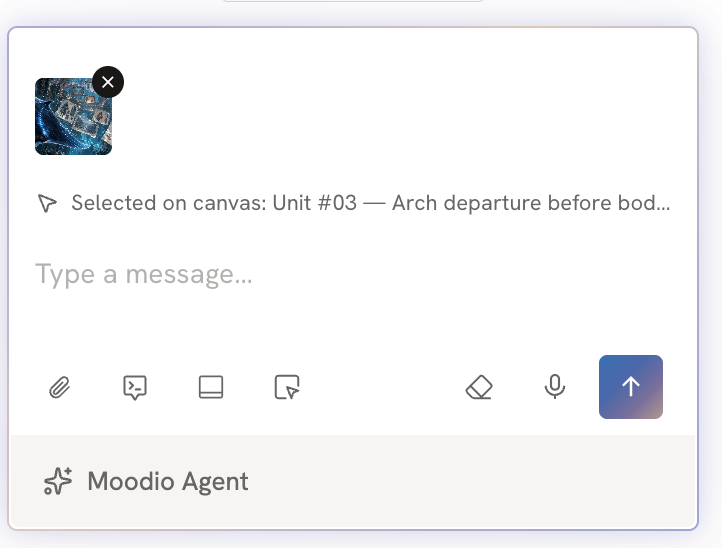
Sends the image to your chat with the Agent. There you can add text to discuss or analyze the image, or ask for the next step in your work.

Enter a 3D world

Uses the image to create a 3D world: a 3D space generated from what the image shows, where you can keep working on the scene in 3D. Move the camera to capture images of the scene from any angle or to record video, and send them straight to the canvas. You can use a captured image as a reference for your next generation, or use it as it is.
Use WASD and the mouse wheel to move the camera, and drag to change the camera angle. Hold Shift+WASD to move faster.
When you find an angle you want to use as a reference, click Photo to capture the current view and send it to the canvas.
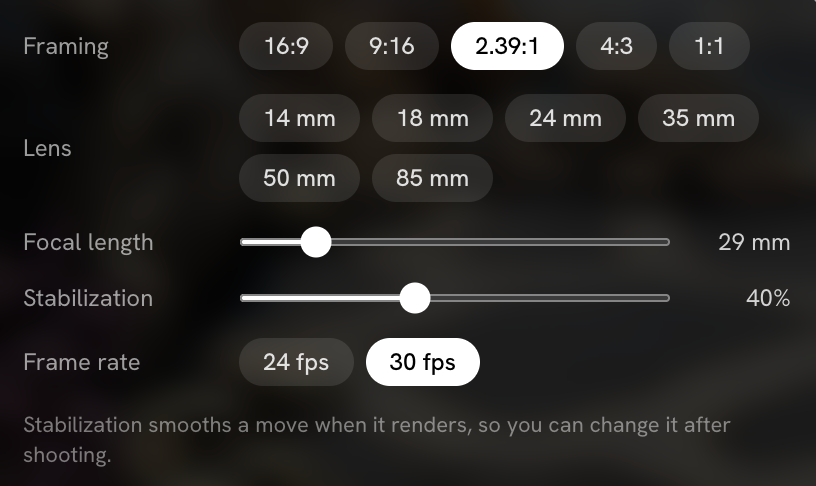
You can adjust the camera settings in detail, or click Shoot with phone and scan the QR code to shoot with your phone.