
Connections
What is a connection?
A connection shows a relationship between nodes.
For example:
You start with a picture of a character, then use it to generate a picture of that character in a scene:
Image node of the character → Image node of the character in a scene
Then you generate a video from that picture:
Image node of the character in a scene → Video result node
By following the connections, you can see what content a result was made from.
What does a connection mean?
A connection means there is a reference relationship between two nodes.
The earlier node = upstream content
The later node = downstream content
When the later node generates, it can use the earlier node's content as a reference.
Connect existing nodes
If the nodes you need are already on the canvas, you can connect them yourself:
- Select the node that provides the content
- Press and hold the connection point on the right side of the node, then drag
- Drag the connection onto the node that will receive the content
- Release the mouse button or trackpad
- When you see the connection, the nodes are connected
In this example, three images are connected as references to a video node before you generate with it. Once they are connected, you can see the connections. You can also click the connected generation node to see that it references the three images.
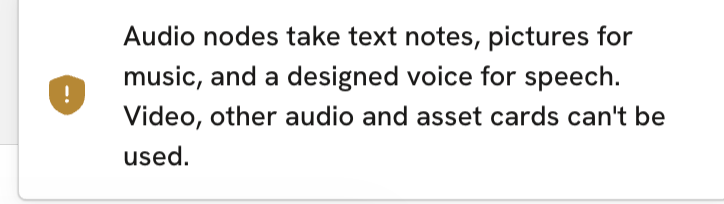
Not all nodes can be connected
Some types of nodes can't be connected to each other.
If you drag a connection, let go, and no connection appears, it usually means:
These two types of nodes can't be part of the same generation chain.
Delete a connection
To delete a connection:
- Hover over the connection
- Click the ✂️ that appears
Deleting a connection does only one thing:
It removes the relationship between the two nodes. It does not delete any content inside the nodes.