
Canvas
What is the canvas
The canvas is the main area for making content. It is the workspace where you place and create your content. The images you upload, the text you write, reference videos, and the results the Agent generates all stay right on the canvas.
You can move around the canvas, zoom in and out, and go from the Full Canvas into the canvas of each clip.
A canvas is made of nodes and connections. Nodes hold the content, and connections show how pieces of content are related.
Canvas features
Clip name in the top-left corner
Shows the name of this clip canvas. Click it to go back to the Full Canvas.
Left toolbar
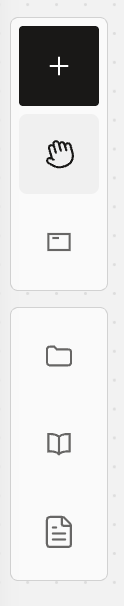
- Add node
Click ➕ to create one of these nodes: Image node, Video node, Audio node, or World node.

- Switch between Select tool and Hand tool (pan)
With either tool, you can click a node to select it, then move or adjust it.
Tip · With the Select tool, holding the left mouse button and dragging draws a selection box instead of moving the canvas. Use it to select several nodes and adjust them together.
With the Hand tool, holding the left mouse button and dragging moves the canvas, so you can move around and look through what is on it. This suits people who are used to dragging to move around an infinite canvas.
- Zone
Drag to draw a zone and organize the canvas. You can change a zone's color to tell different kinds of content apart.
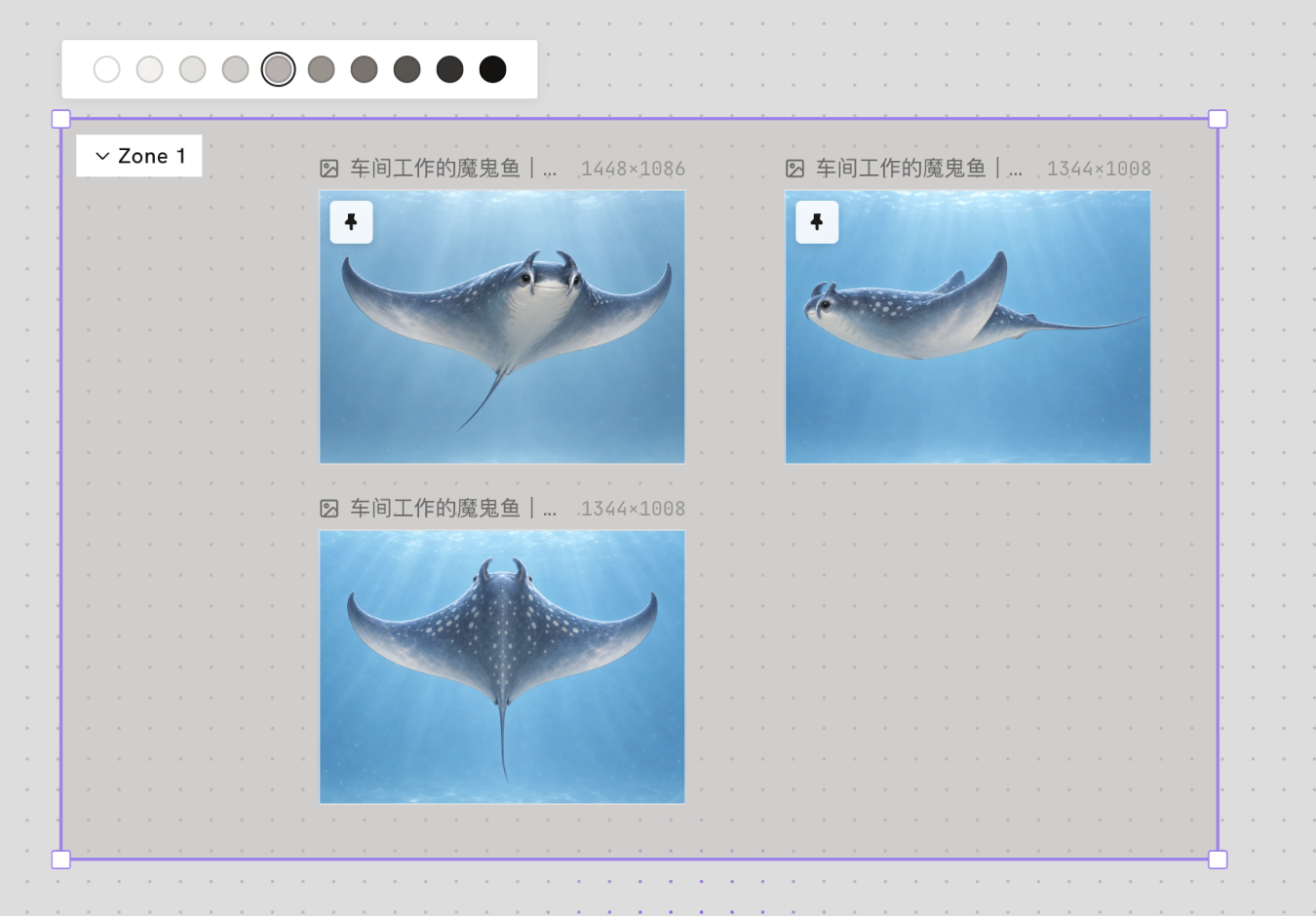
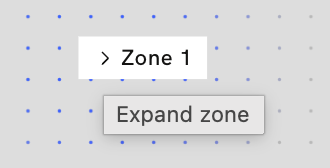
After you draw a zone, you can also click the v-shaped icon to the left of its name to collapse it. This keeps a busy canvas tidy.
- Assets
See the assets in the current project, along with Libraries and My uploads. You can look through your assets quickly and, at any time, drag files from Libraries and My uploads onto the current canvas to use them directly or as references.
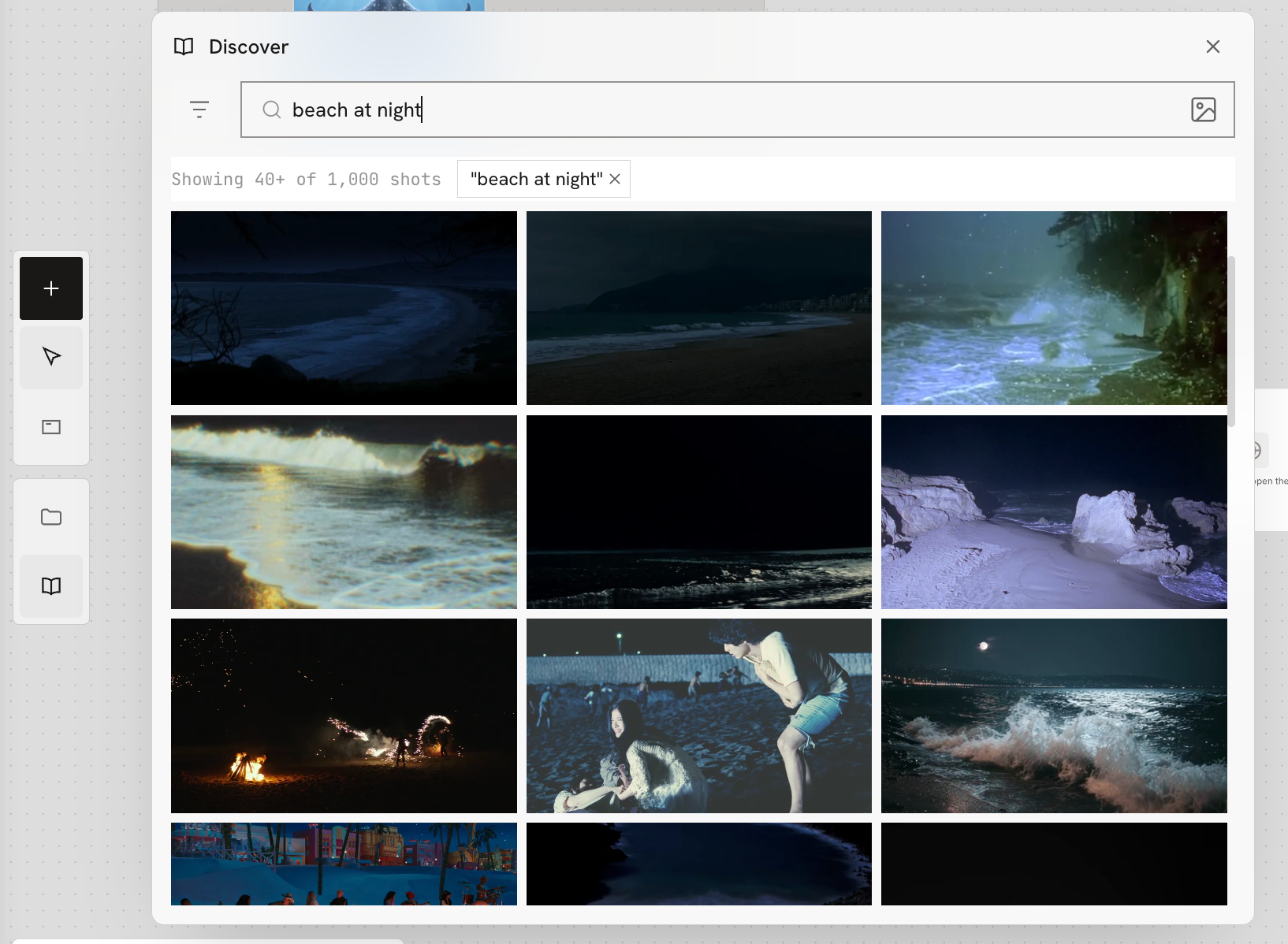
- Discover
Open Discover to browse and collect creative references. You can drag content from Discover straight onto the canvas to use as a reference.
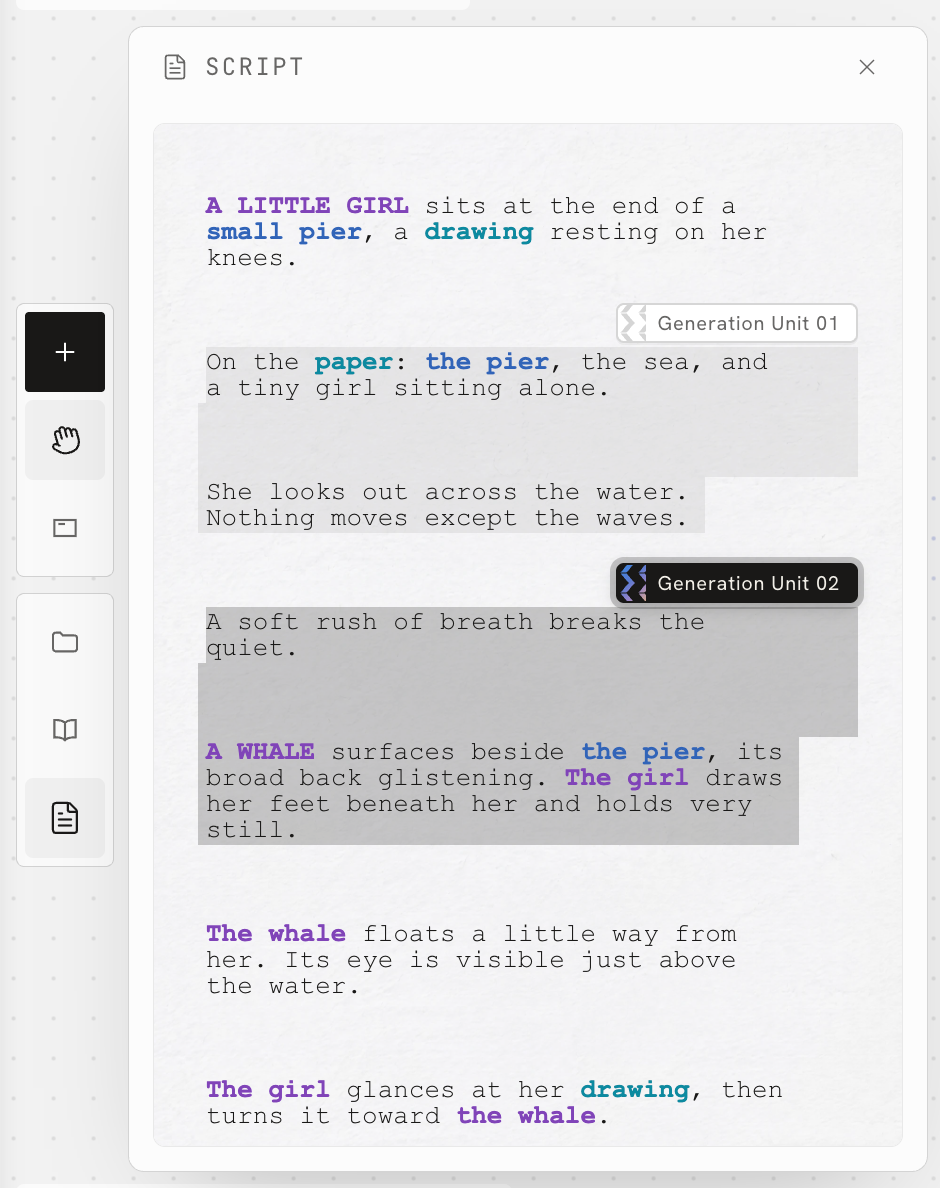
- Script
Open the script in a pop-up window on the Create tab, so you can read the whole script at any time without going back to the script editor. You can keep the script in view while you make your video.
Bottom-left toolbar


- Map
Show or hide a small map of the whole canvas. It helps you find your place quickly on a large canvas.
- Connections
Show or hide the connections between nodes.
- Arrange
Tidy up the layout of the nodes on the canvas automatically.
- Approved only
Hide all other nodes and see only the approved ones.
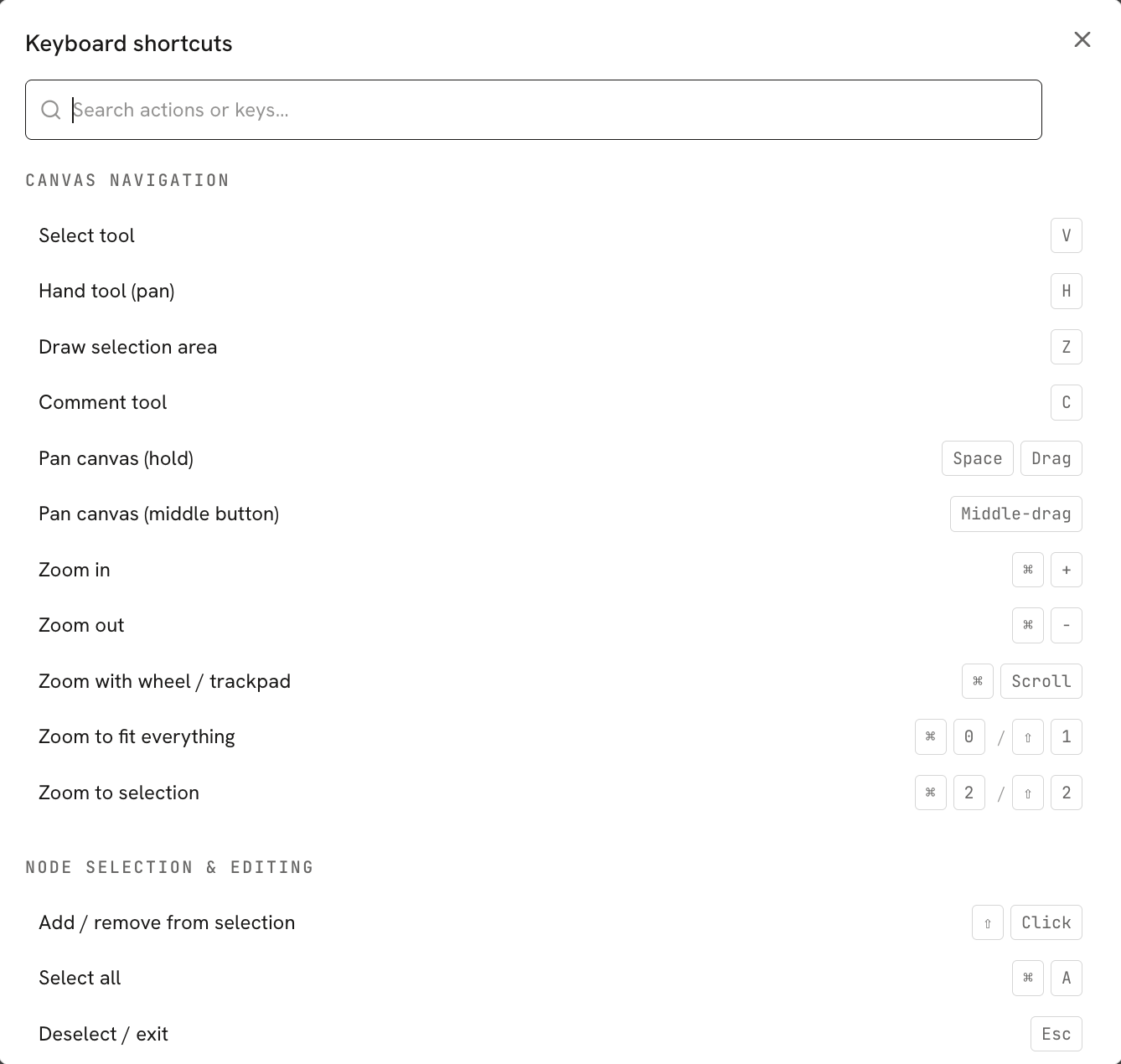
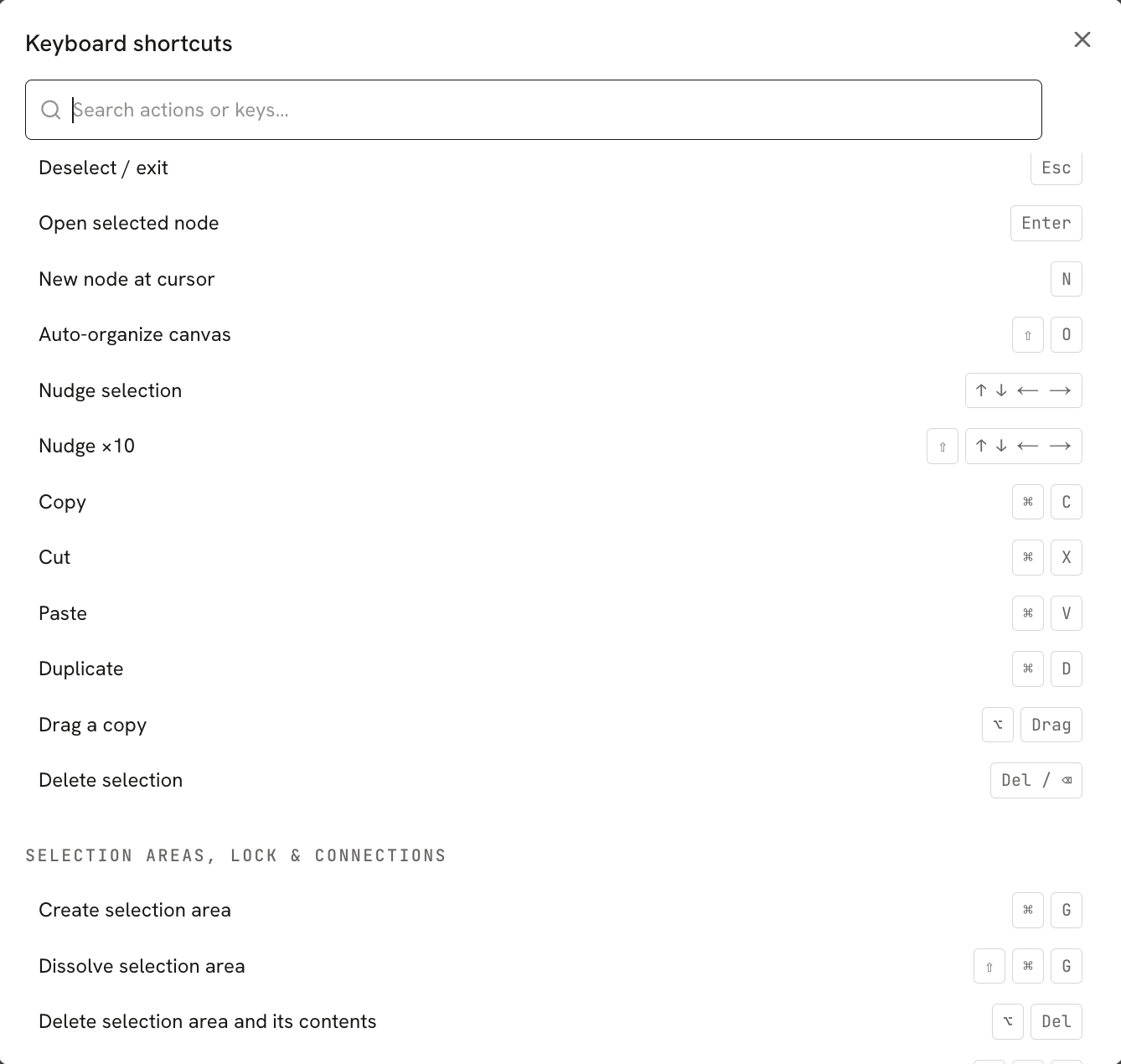
- Keyboard shortcuts
See the keyboard shortcuts that the Asset Canvas supports. You can search for the action you need to find its shortcut quickly.
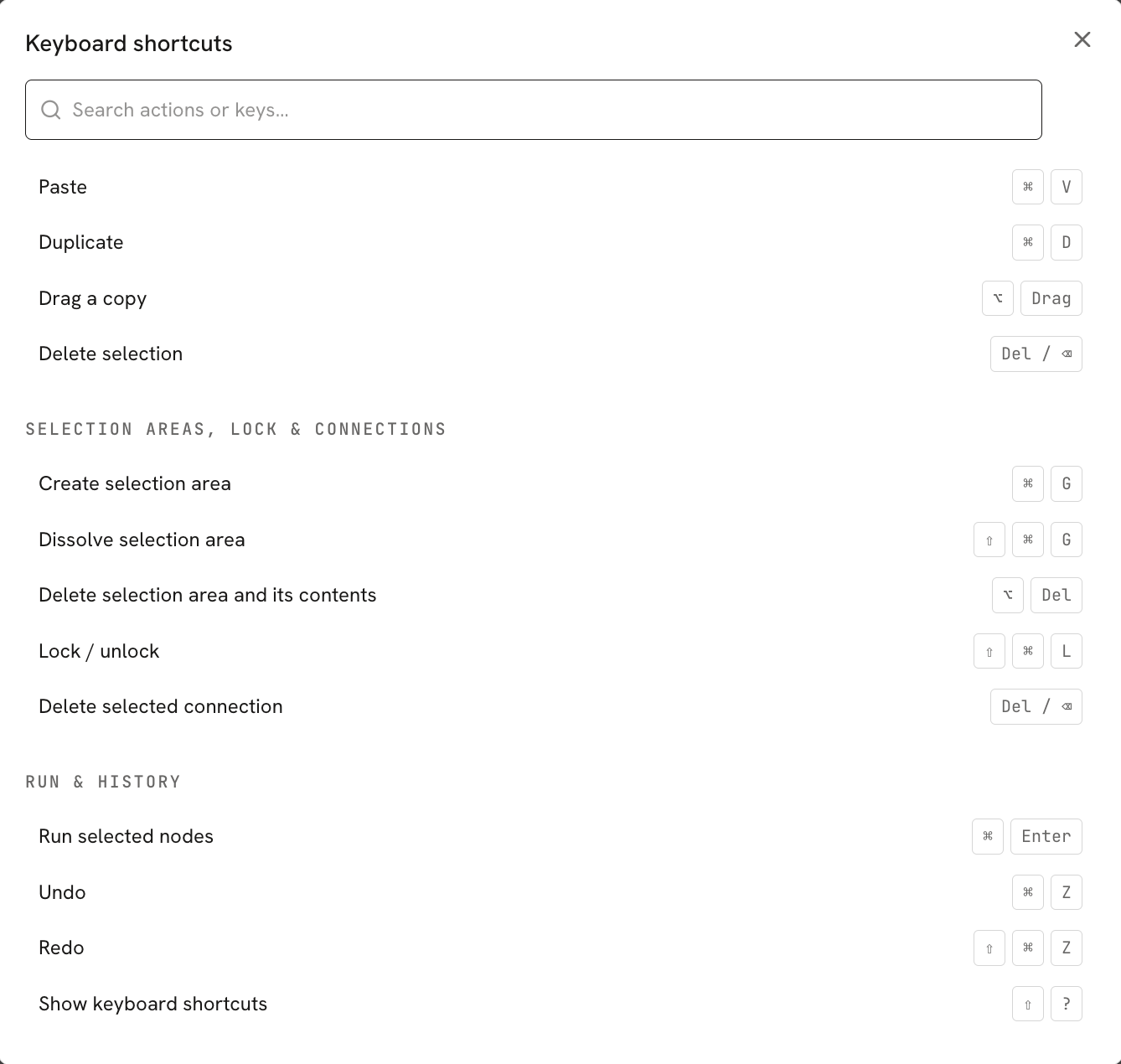
- Zoom
Drag the zoom slider to zoom in or out on the canvas.
Clips bar below the canvas
The clips bar at the bottom of the canvas shows the clips in the current project and lets you switch between them, so you can jump quickly from one clip to another.

Go back to the Full Canvas: Click Full Canvas in the middle of the bar, or press
Esc, to go back to the Full Canvas and see all the clips in the project.Expand the clip list: Click anywhere on the bar other than Full Canvas to expand it and see thumbnails of all the clips. A clip that has approved media shows a picture of that media. One without media shows its selected script passage, or is blank.
Open a clip canvas: Click a clip in the bar to open its canvas. This is a quick way to jump between the canvases of all your clips.
Create a clip: Click the
+at the far left to create a new clip.Manage a clip: Click the
···in the top-left corner of a clip's thumbnail to do the following:- Locate in script: Jump to the part of the script that belongs to this clip.
- Edit script range: Change which part of the script this clip covers.
- Rename clip: Change the name of the clip.
- Delete clip: Delete this clip. When you delete it, a message first asks whether to keep the content inside the clip.