
Generate audio
To create and use audio on the canvas, you can ask the Agent to create an audio generation card, or create an audio generation node on the canvas yourself.
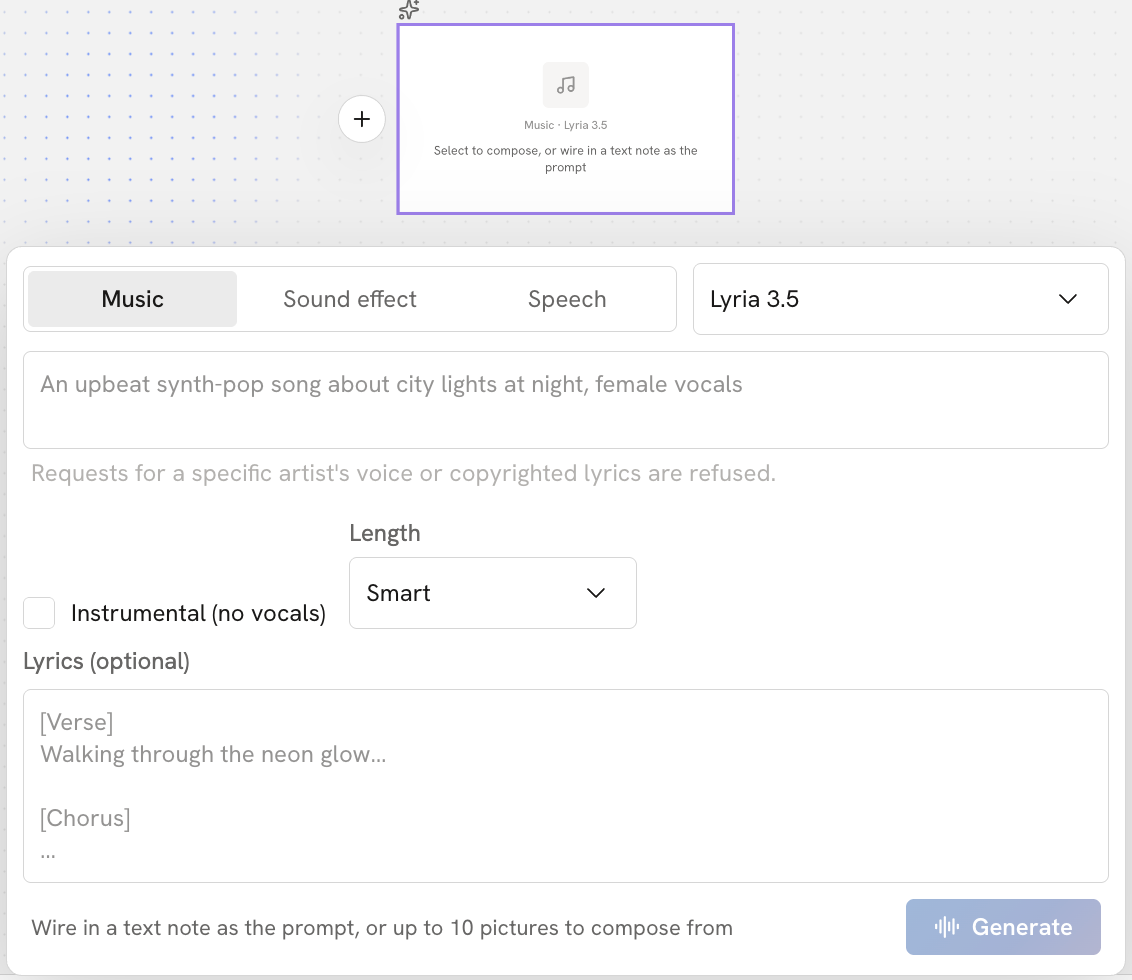
In an audio node, you can generate different types of audio for your work, including music, sound effects, and speech.
After you create an audio node, choose the type of audio to generate in the node, then adjust the settings for that type.
Music
After you choose Music, you can generate the music you need from a text description.
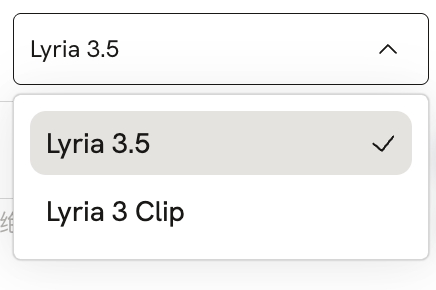
- Model
At the top right of the node, you can choose the model that generates the music. Models can differ in musical style, sound, and what they are able to generate.
- Describe the music
Type a description of the music you want. You can include the scene, mood, style, rhythm, and more.
For example:
Warm, comforting piano music for a scene of a little girl waiting for a whale by the sea. Quiet and gentle in mood, slowly growing brighter.
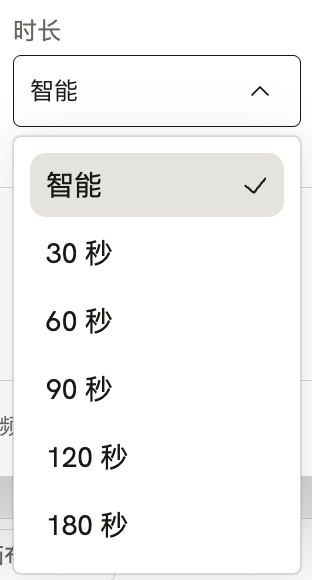
- Length
Set the length of the music, or choose Smart to let the model decide the length.
- Vocals
Choose whether to include vocals. If you want a male or female voice, say so in the description.
- Instrumental (no vocals): generates music only, with no vocals.
- With vocals: adds sung vocals to the music.
- Lyrics (optional)
If you want music with singing, you can add lyrics, and the AI generates vocals that sing them. Lyrics are optional. If you only need instrumental music, you don't need to add any.
Sound effect
After you choose Sound effect, you can generate the sound you need from a text description, such as footsteps or applause.
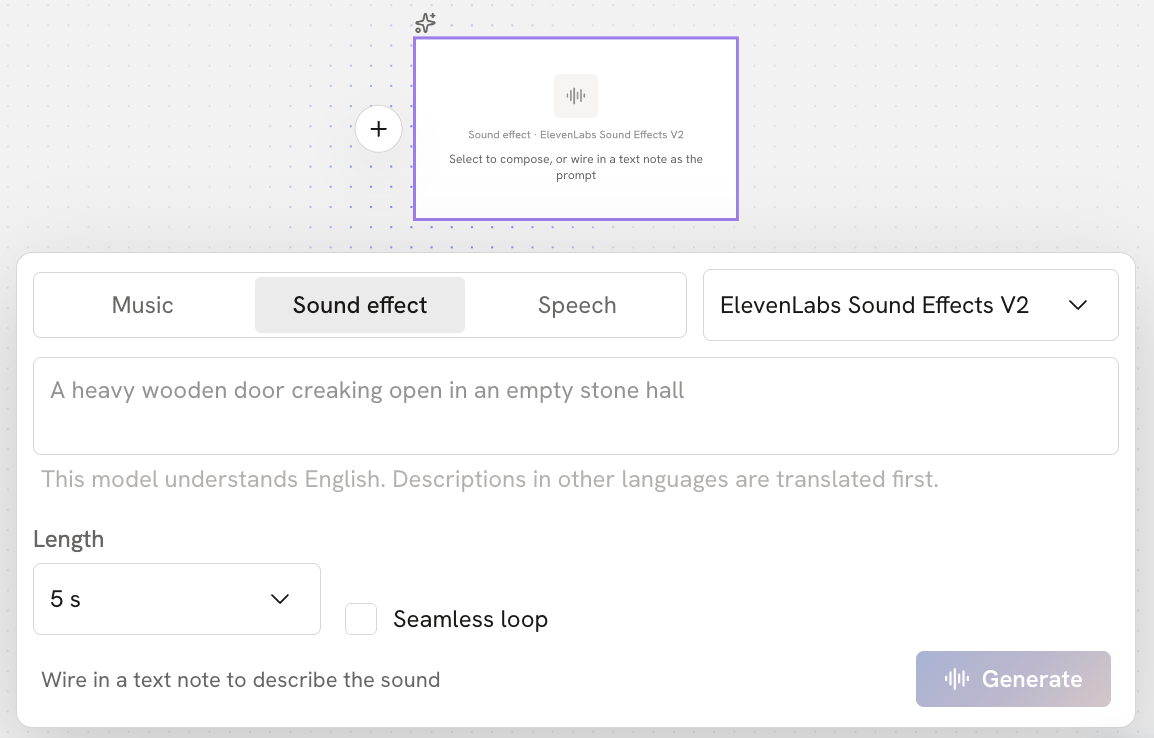
- Model
At the top right of the node, choose the model that generates the sound effect.
- Describe the sound
Type a description of the sound you want. Describe as clearly as you can what makes the sound, the action, and the surroundings.
For example:
Ocean waves at the seaside, breaking again and again against a wooden pier. Quiet surroundings, with no one talking.
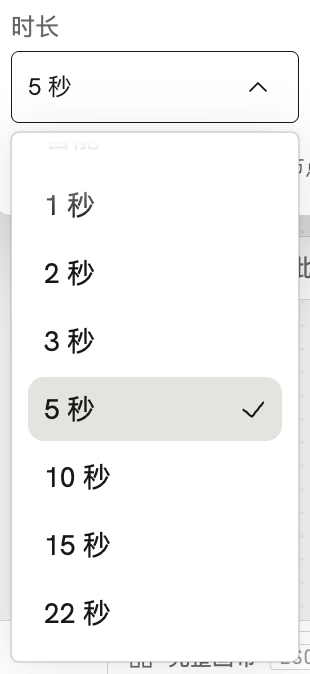
- Length
Set how long the sound effect lasts. Choose a length that fits where you will use it.
- Seamless loop
When it is on, the generated sound effect can play in a seamless loop, with as few noticeable breaks as possible where the end joins the start.
This suits background sounds that need to play continuously, such as:
- Ocean waves
- Rain
- Wind
- Forest sounds
Speech
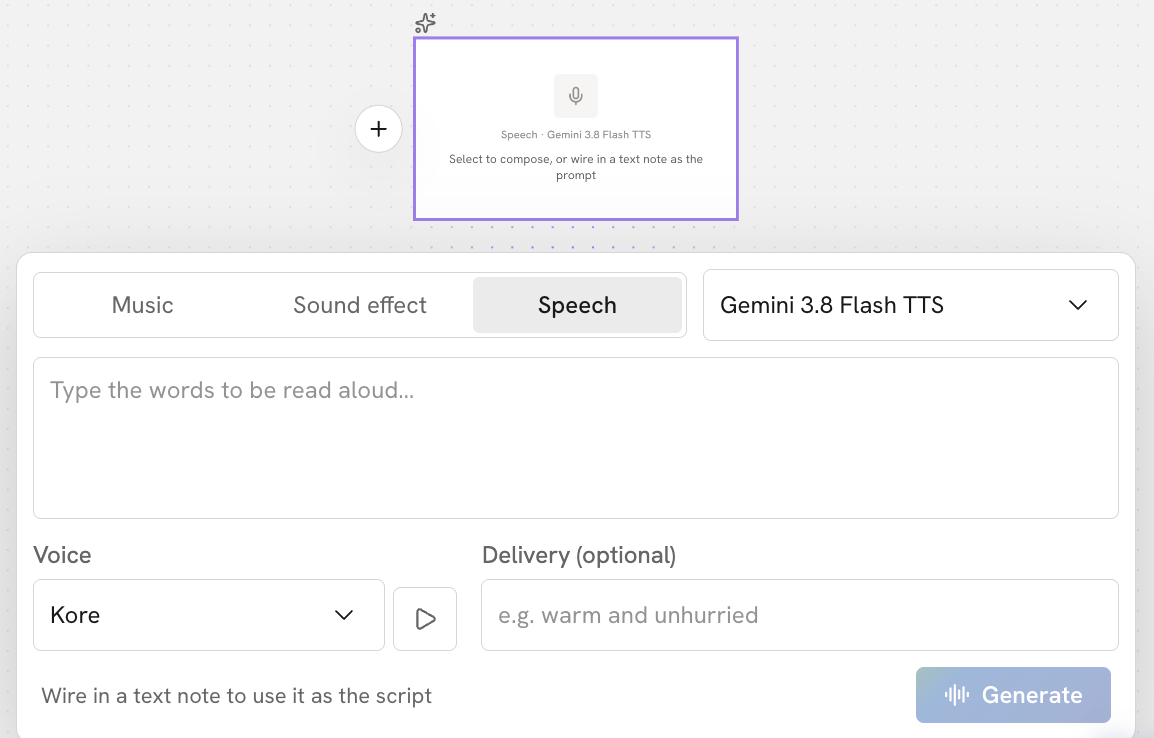
After you choose Speech, you can turn the text you type into natural-sounding human speech.
- Model
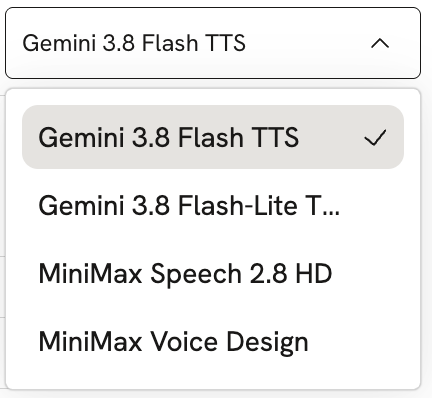
At the top right of the node, choose the model that generates the speech.
Models can differ in the settings they support, such as Voice, Emotion, and Pace.
- Text to speak
Type the text to be read aloud, and the model generates speech from it.
- Voice
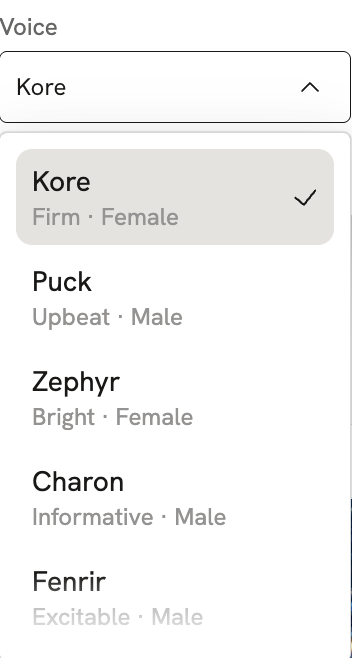
Choose the kind of voice for the speech. Pick a voice that suits the character or the content.
Models can offer different voices. Some voices can be previewed: click the play button next to a voice to hear a sample before you decide whether to use it.

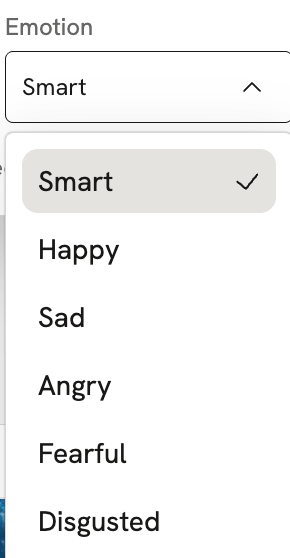
- Emotion
A few models can generate speech with a chosen emotion. Choose an emotion that suits the content, so the speech fits the character and the scene better.
For example, depending on the options the model supports, you can choose emotions such as Happy, Sad, or Angry.
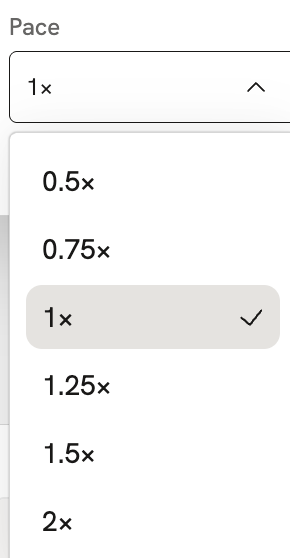
- Pace
Some models let you adjust the Pace, so you can make the reading faster or slower to suit the content.
Tip · Models can support different settings. The options you can adjust depend on the model you have selected.