Edit videos
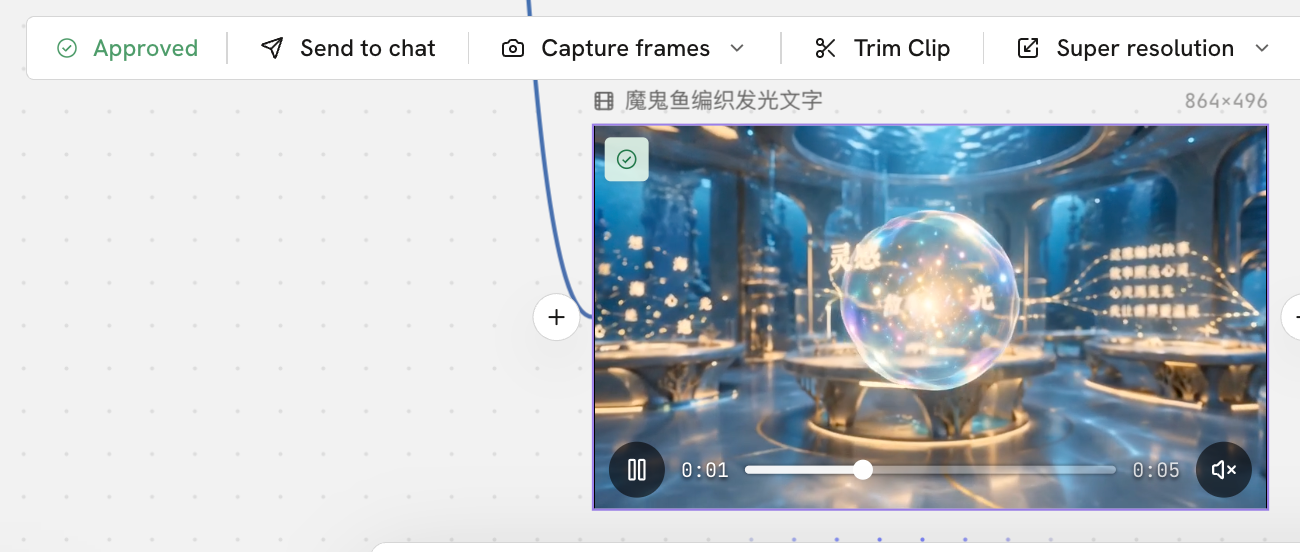
After a video is generated, click it and use the toolbar that appears above it for more actions.

Approve
If you are happy with the generated video, click Approve.
Once approved, the video goes into the Media pool in the Editing tab, ready for you to edit and use.
Send to agent
Sends the video to your chat with the Agent, where you can ask for the next step in your work.
Capture frames
Captures chosen frames from the video to use as images.
You can choose:
- First frame: captures the picture at the start of the video and places it on the canvas.
- Last frame: captures the picture at the end of the video and places it on the canvas.
- Capture frames: lets you pick a moment in the video and capture the frame at that point.
In the timeline below, choose the frame you want and click Capture frame. The captured frame appears in the list on the right. Click Add to canvas, and it appears on the canvas. You can capture several frames and add them all to the canvas at once.
You can then use the captured images for new images, video generation, or other work.
Trim Clip
Lets you trim the video and make simple adjustments. When you finish, the original video is kept, and the result is added to the current canvas as a new video.
- Trim
Sets new start and end points for the video in the timeline, so you keep only the part you need. Use it to cut what you don't need from the start or end of a video and keep just one section for later work.
- Speed
Changes the playback speed of the video. You can speed it up or slow it down.
- Reverse
Plays the video backward, so the action runs from the end to the start.
Super resolution
Raises the output resolution of the video and improves its detail, giving a low-resolution or blurry video a higher-resolution version.
Topaz Starlight Precise 2.6 is the AI model used for video super resolution. It rebuilds and enhances the video's frames, improving detail as it raises the resolution.
Upscale factor sets how many times to enlarge the video's resolution. A higher factor gives a higher output resolution, but processing also takes more time and more credits.
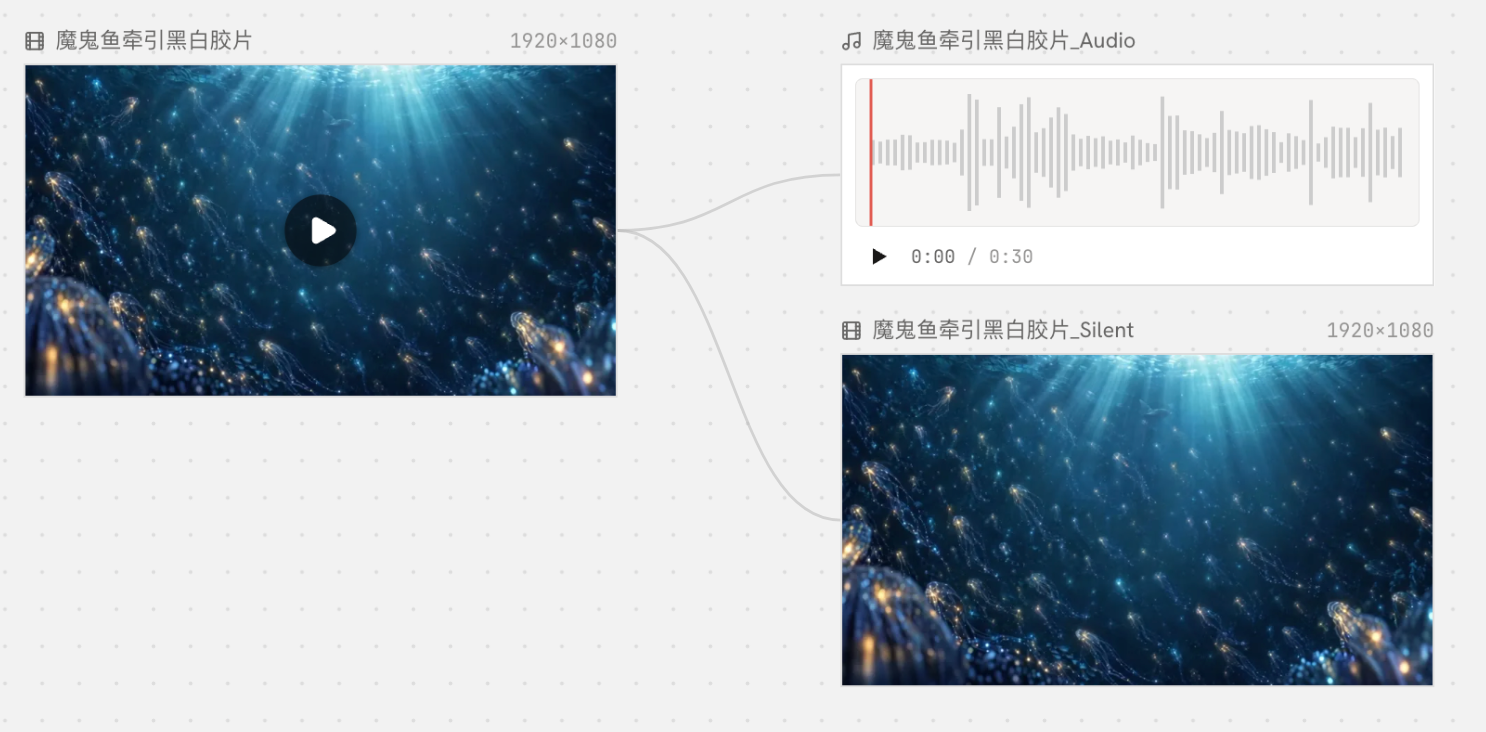
Separate audio and video
Separates the picture from the audio of the video, so you get the video and the audio as two parts that you can work on independently or use in more work.