How to create clips
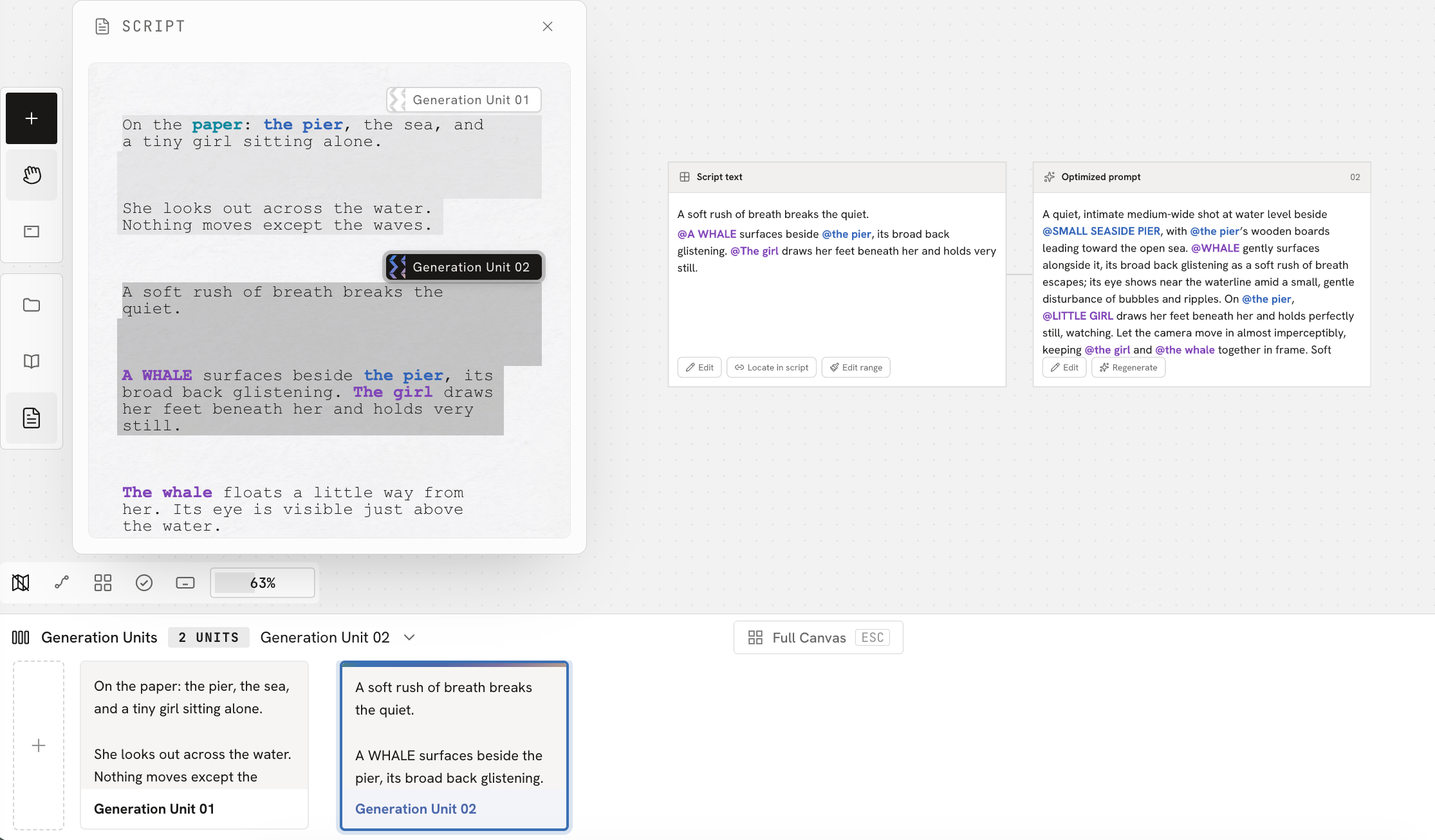
When you have finished the script or your other preparation, you can organize the video content you want to generate into clips. Moodio gives you two ways to add clips: splitting them in the Scripts tab and creating them by hand in the Create tab.
In the Scripts tab
- Split automatically with the Agent
Ask the Agent to split the current script into clips, or click Detect clips at the top right of the script in the script editor. The Agent reads the script to understand the story's structure, and decides how to split it based on action, dialogue, scene changes, and pacing.
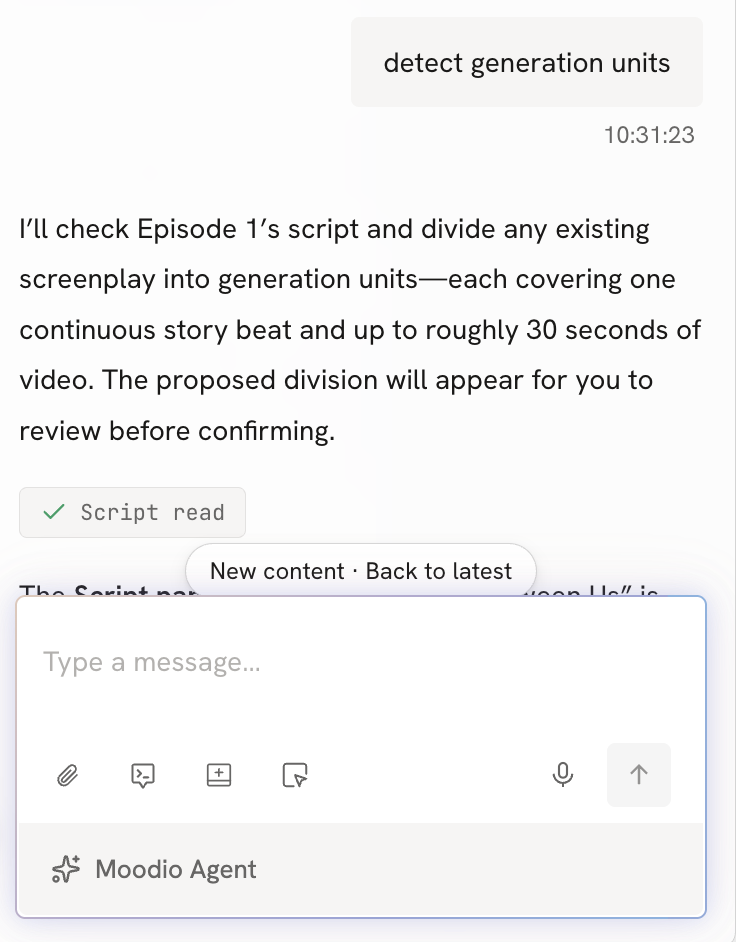
When detection is done, the Agent prepares the following for each clip:
Script text: The part of the script that belongs to this clip.
Optimized prompt: A prompt written from the script, for generating the video later.
These are added to the matching clip canvas automatically, and you can go on to make the video from them right away.
- Split by hand
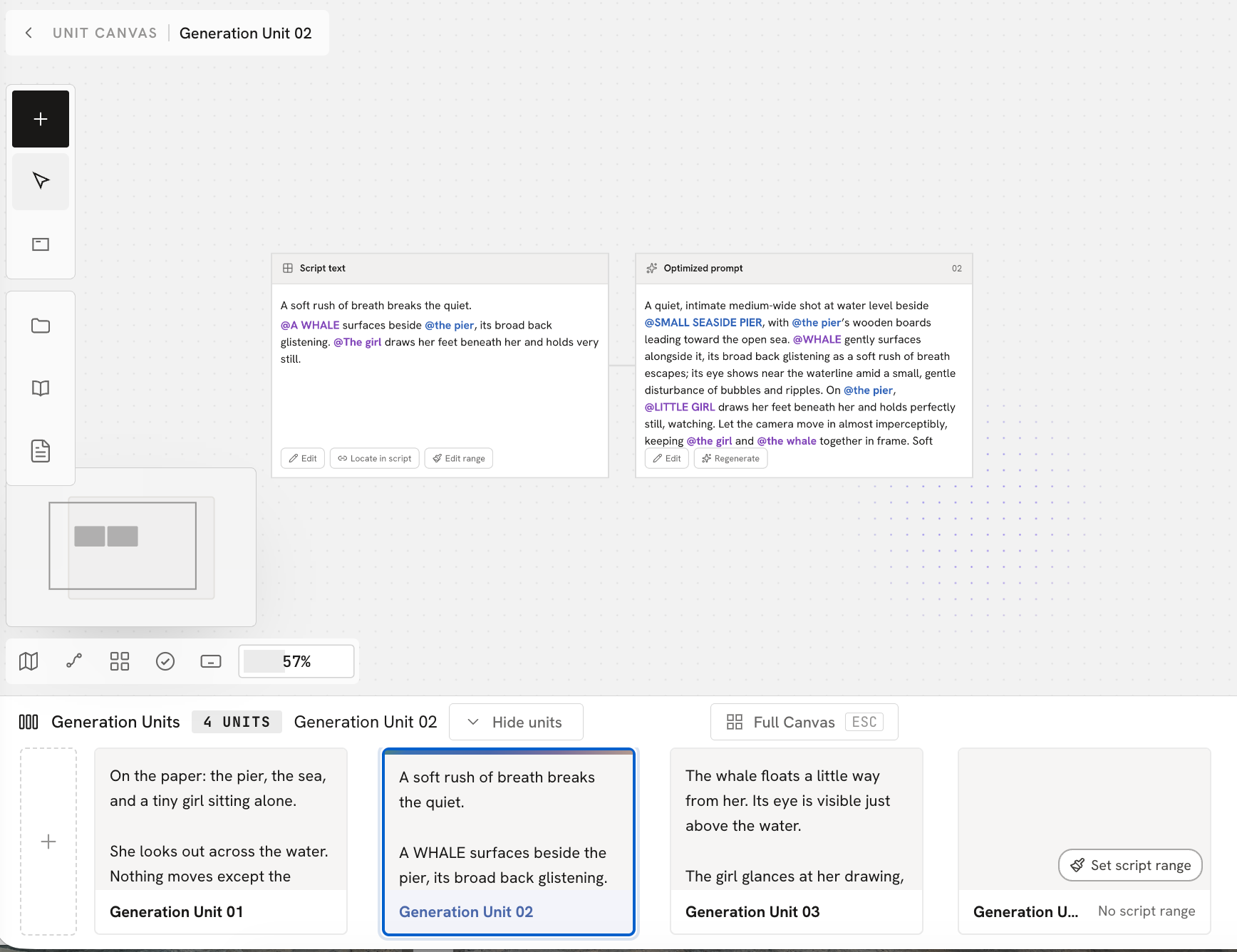
Manually select the content you want to generate and click Create clip. This gives you more flexible control over what each clip generates.
After you split the clips by hand, Moodio automatically adds the script passages you selected and an optimized prompt to the matching clip canvas as text nodes, so you can go straight into the clip and keep making the video.
In the Create tab
Create a new clip directly on the Full Canvas in the Create tab.
Click + at the bottom left of the canvas to add a new clip.
This is useful when you need to add new video content partway through your existing work.
After you create a clip, you can choose the script content that goes with it. Click Set script range, then in the script selection window that opens on the left side of the screen, select the passages to add to the current clip.
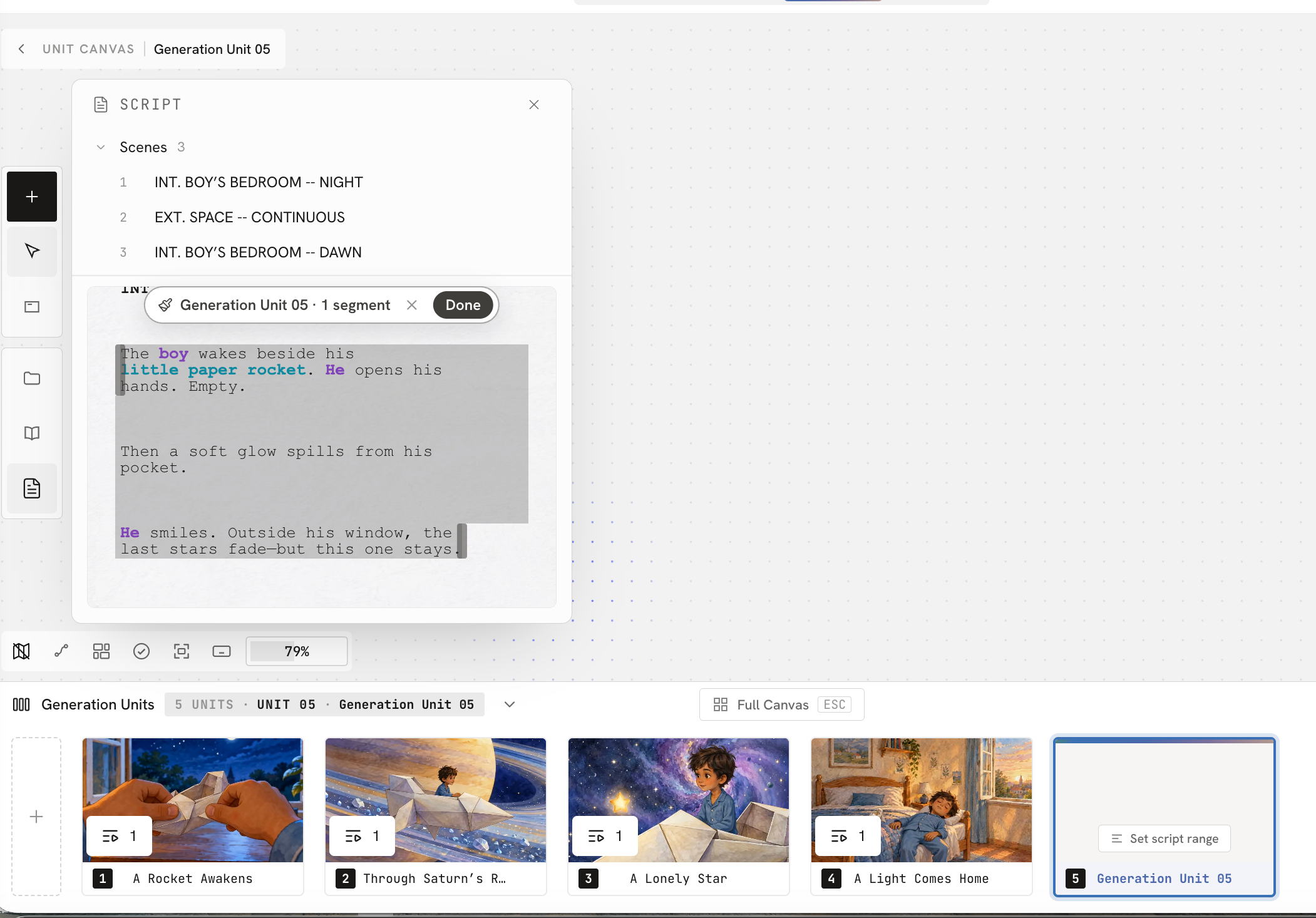
When you finish, Moodio automatically adds the following to the clip canvas:
- The script content you selected
- An optimized prompt
Both appear as text nodes and serve as the basis for generating the video later.