How do you start writing?
Write with the Agent
Select any passage in the script to send it to the Agent. You can ask the Agent to analyze it, suggest changes, or make the changes you ask for directly in the script. When the Agent finishes, its changes appear in the script.
The Agent can automatically generate character bios, a synopsis, and a style statement. These become shared context for the project and give clear, complete references for the later steps: building assets, breaking the script into shots, and generating videos.
Start from an idea
You do not need a complete story at the start, and you do not need to write all the text yourself.
If you only have a simple idea, ask the Agent to help you get started. For example:
“I want to make a heartwarming short film about a little girl and a whale, but I don't have a story yet.”
Based on your idea, the Agent helps you develop the story, shape the characters, write the script, and set a consistent style.
As you work, keep talking with the Agent and tell it what to change, so the content gets closer and closer to what you have in mind.
Have the Agent create documents
Besides writing the script, the Agent can also help you put together other documents.
For example, you can ask the Agent to generate these from a story you already have:
- Synopsis
- Character bios
- Style statement
If you already have a complete story, for example, you can tell the Agent:
“Write character bios based on this story.”
The Agent pulls out and organizes the relevant information from what you already have. You can then check and edit the result, which saves you a lot of time.
Have the Agent edit your text
If you have already written part of the text, you can also ask the Agent to edit it.
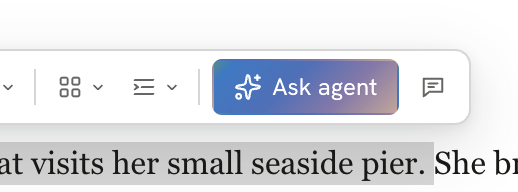
Select the text you want to change, click Ask agent, and tell the Agent how you want it changed. The Agent works with the text you selected, so you do not need to describe the whole text again.
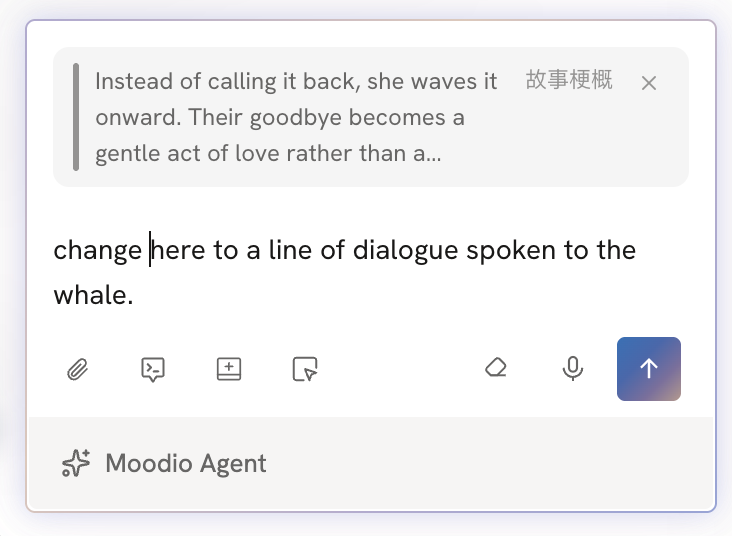
For example:
- Make the story tighter
- Add more detail to a scene
- Change how a character's personality comes across
- Rewrite the dialogue
- Change the wording
- Fill in missing information
Write on your own
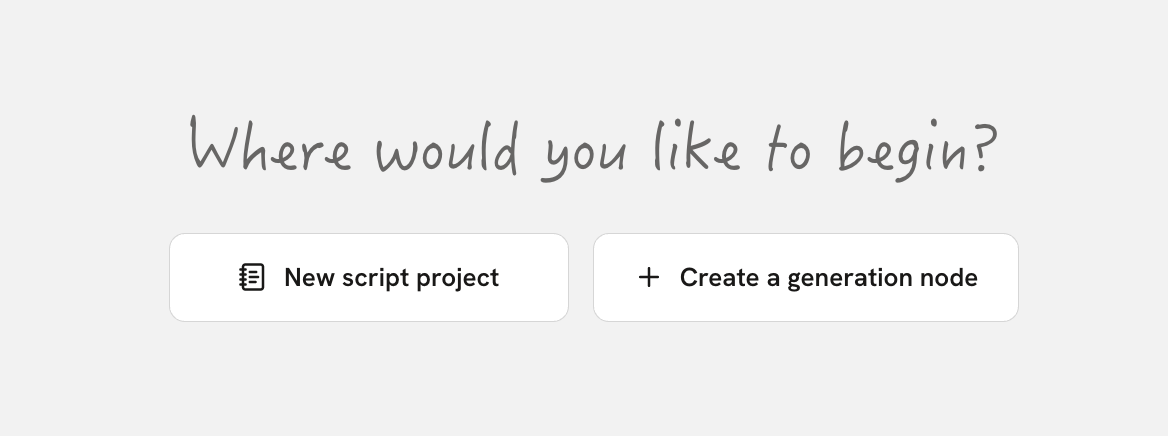
Create a new script
Choose New script to open a blank script editor.
You can type your script right there and use the format tools to organize it.
If you already have a script, choose Import a script instead. After you import it, it goes straight into the script editor, where you can keep editing and formatting it.
Type and format text
Moodio lets you give each kind of content in a script its own format. Using formats well helps the AI understand the text more accurately and makes the structure of the script clearer. To choose a format, double-click in the script or type / to open the format bar.
These script formats are available:
- Scene: Describes the place, time, and setting where the story happens.
- Action: Describes the actions of characters and objects, or what happens in the scene.
- Character: Marks the character who is speaking or taking part in the current moment.
- Parenthetical: Describes the tone or emotion of a character's line.
- Dialogue: Records exactly what a character says.
- Transition: Describes how the script moves from one scene or part to another.
- Subtitle: Adds text that should appear in the video.

Create other documents
Besides the script, you can create other kinds of documents as your project needs them:
- Synopsis: Sums up the core of the whole story and where it is heading.
- Character bios: Introduces each character's identity, personality, background, and other details.
- Style statement: Describes the overall style and creative direction you want for the work.
- Blank document: For any other kind of creative material, create and organize it however you like.
Edit other documents
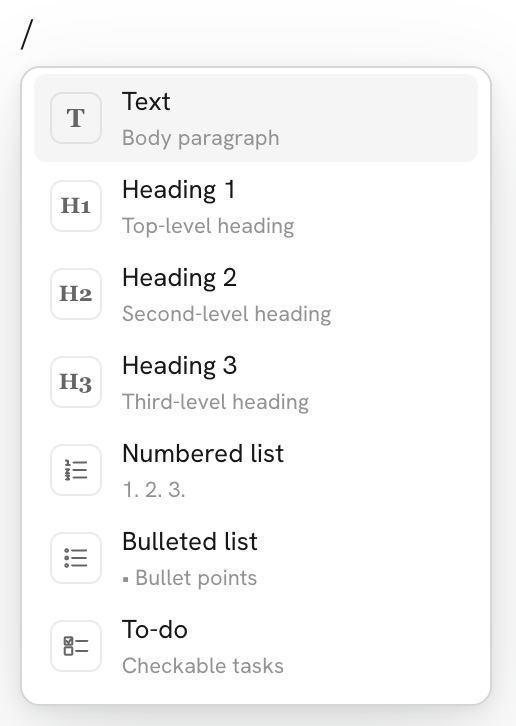
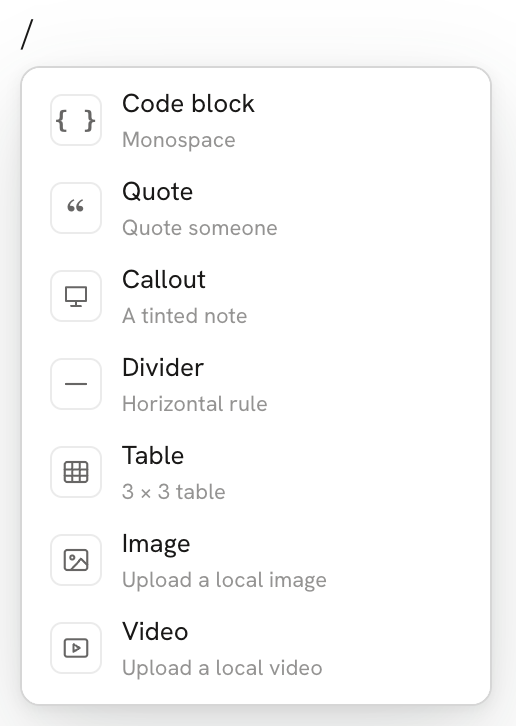
When you create a document other than the script itself, a blank editing page opens. You can type right away, or type / to insert text, images, and video. The content you can insert includes Text, Headings, Numbered list, Bulleted list, To-do, Code block, Quote, Callout, Divider, Table, Image, Video, and more.
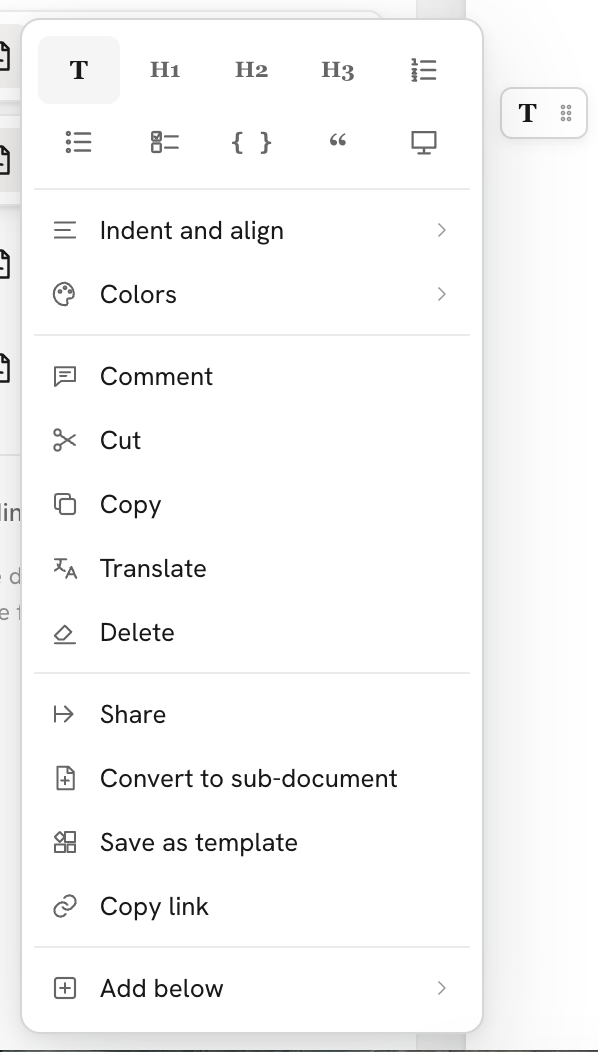
You can also click the T icon to open the tool menu, where you can adjust the text format, Indent and align, Colors, and more. The menu also has actions such as Comment, Copy, Translate, and Delete, and you can also use Share, Convert to sub-document, and Save as template on the content.