
Nodes
What is a node
Every piece of content on the canvas is a node.
Nodes are independent of each other.
How to create nodes
There are three common ways to create a node on the canvas:
Click
➕to create one of these nodes: Image node, Video node, Audio node, or World nodeRight-click an empty spot on the canvas to create a node
From the right-click menu, you can choose:
Add a generation node, Add asset, Add a text node, and Add an audio node
Hover over any node you want to use as a reference, and click the
+on its right or left sideIn this example, the reference is a prompt node that Moodio has refined. Clicking
+creates an image or video node automatically, with that prompt already added.
What each type of node is for

Text node
A text node adds written content to the canvas.
You can use the text as part of your work or as a reference for generation. For example, add character details, scene descriptions, or creative requirements, so that other nodes on the canvas have written information to work from.
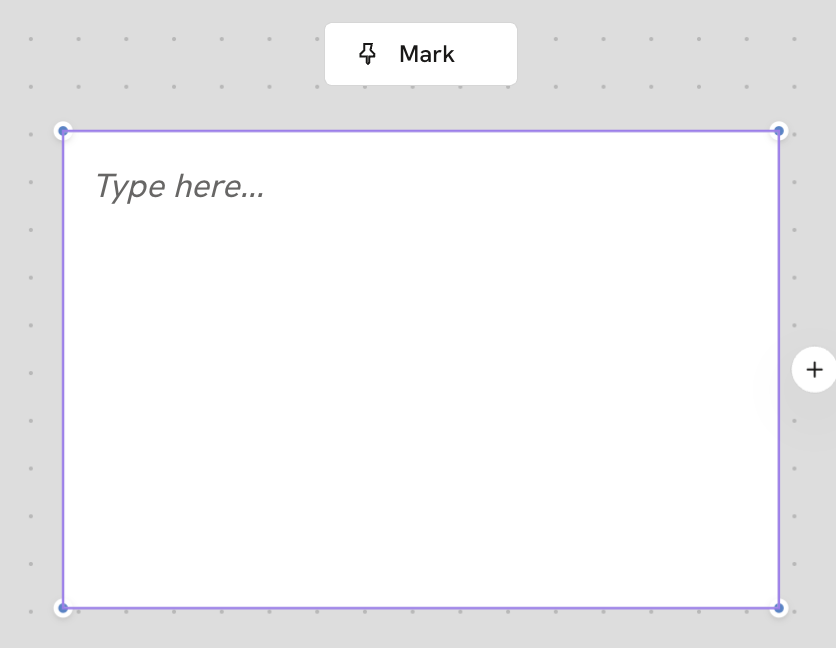
Image node
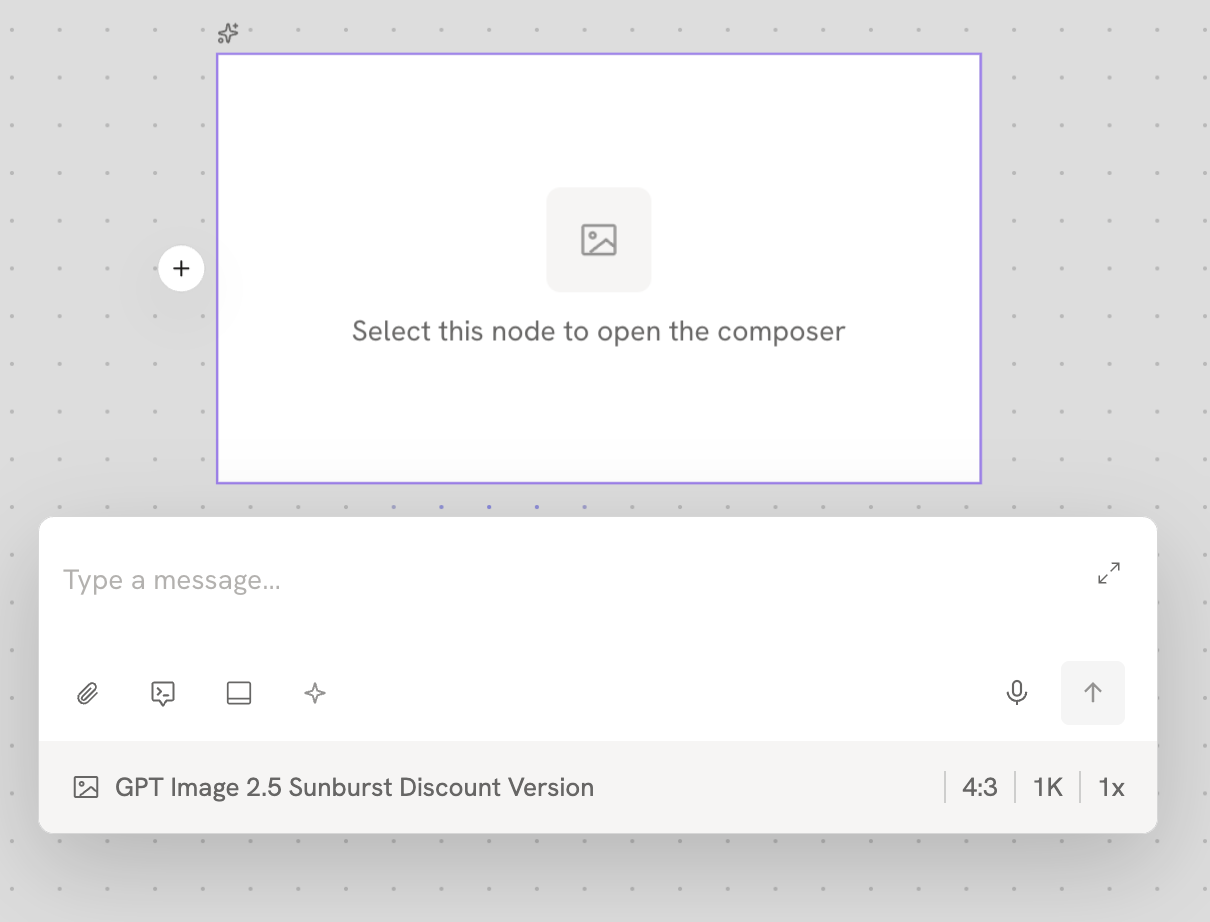
An image node generates still images.
Use it to create visual assets such as character looks, scene concept art, and prop designs. You can also combine a text description with reference media to generate the image you need.
Video node
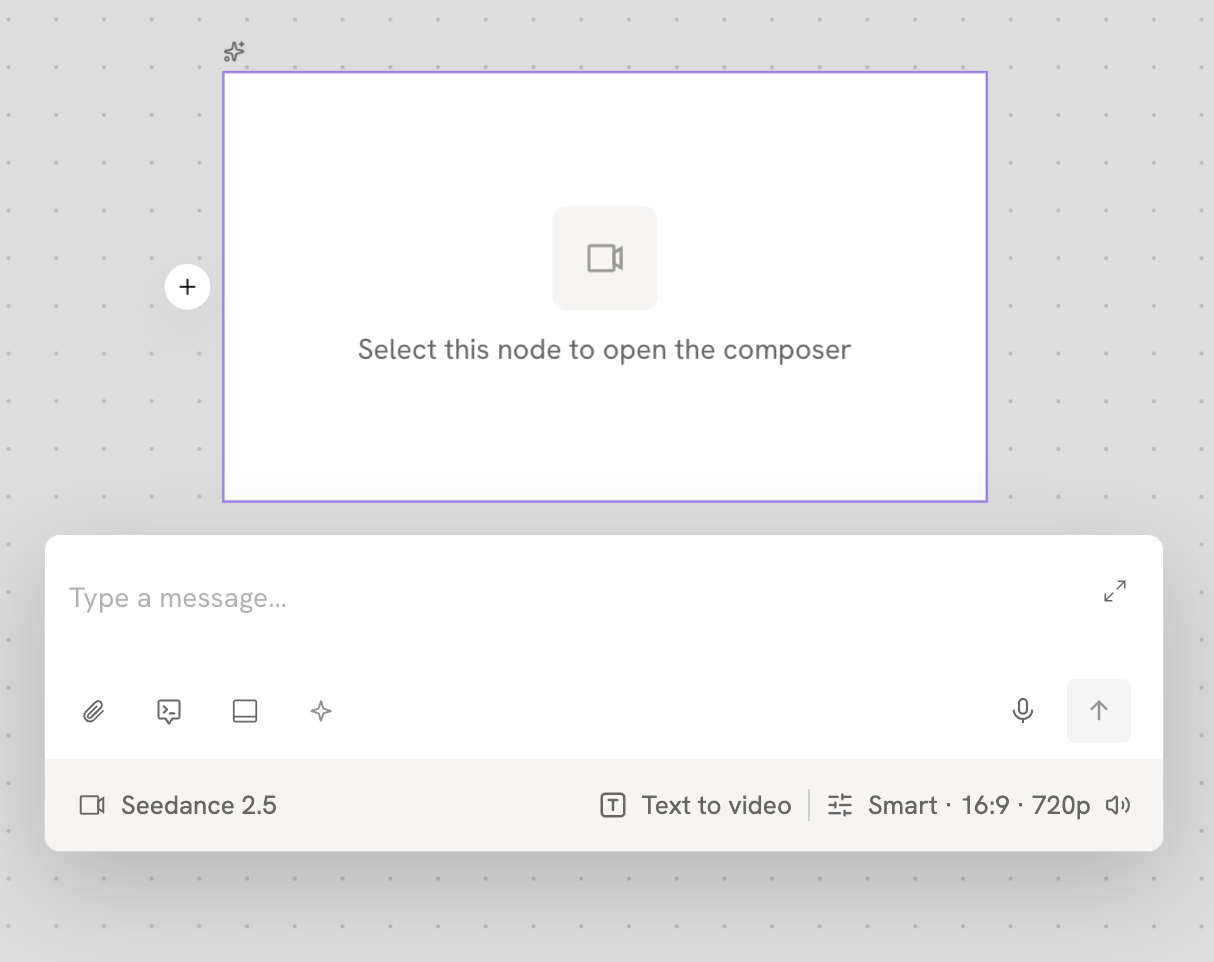
A video node generates video.
Use it for assets that need to show a character's actions, changes in a scene, or other motion. It can generate a video from a text description and from images, videos, or other references you already have.
Audio node
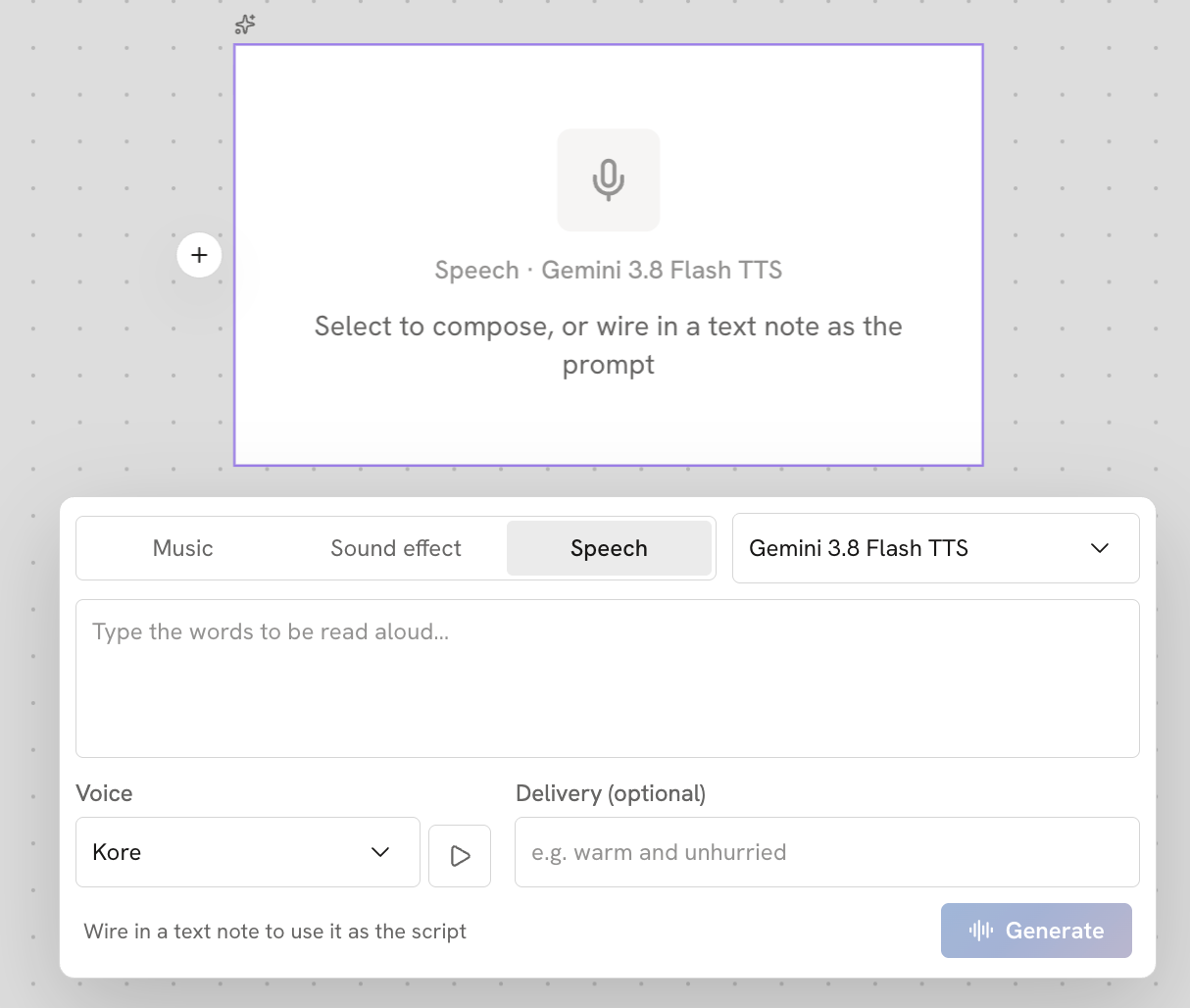
An audio node generates or processes sound. Use it for work that needs sound, such as character dialogue, narration, ambient sound, or other audio.
Audio can be part of how you create an asset, and you can also use it together with other nodes.
3D world node
A 3D world node creates content in a 3D space and lets you explore it.
Unlike generating a single image, a 3D world gives you a three-dimensional space where things have real positions relative to each other. You use it to build and adjust the space, the objects, and other parts of a scene.
For example, you can build a room, a street, or another 3D scene with a clear spatial layout, and then look at it and work on it from different angles.
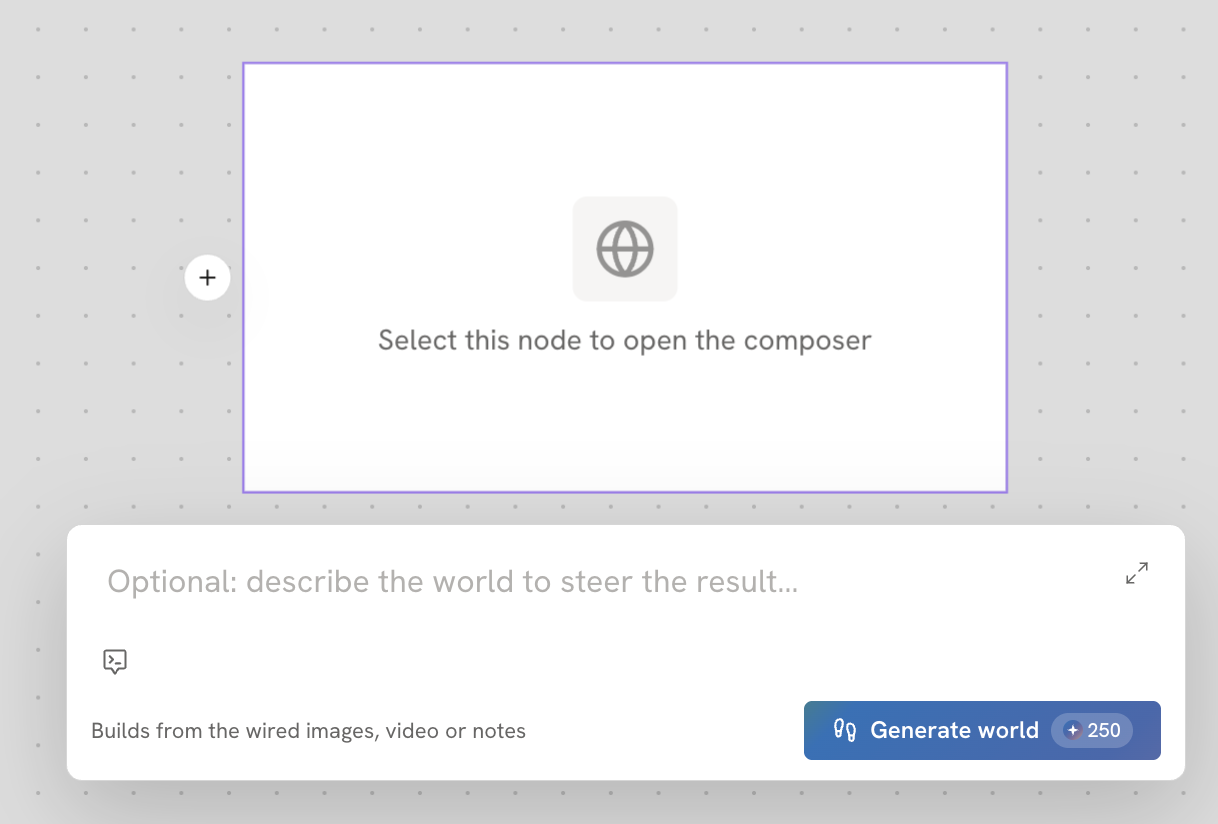
Add asset
The media node lets you view and use media you already have, and add new media to the current Asset Canvas.
It does four main things:
- Shows the media from all your projects saved in Moodio, and the media you have already uploaded
- Lets you choose files on your device and upload them to your Library.
- Lets you take photos or videos with your device's camera and add them to the canvas.
- Lets you record your voice with your device and add the recording to the canvas.
The node's prompt box
This is where you describe the picture you want to generate. It is an important input for controlling the result.
Write the prompt and link assets
Type a text description of what to generate. You can describe the characters, actions, scene, camera movement, visual style, and more. This description is an important input for controlling the result.
- Type @ to link an asset card you want to reference. The card you choose is linked straight to the generation node.
- Or, on the canvas, connect the node you want to reference to the generation node.
- You can also click Asset cards in the prompt box to link an asset card.
Prompts
Use Moodio's ready-made prompts to improve your prompt.
Upload reference media
Upload media as a visual reference. It helps the model understand the look of characters, scenes, styles, and other visual details.
You can add media from all your projects saved in Moodio, media you have uploaded before, and media from Discover. You can also upload files from your device, or take new photos or videos and upload them.
Refine prompt
Improves your prompt and adds detail to it, based on what you have typed. The description becomes clearer and more specific, which helps the model understand more accurately what you want to generate.
Basic node actions
Select a node and right-click it to copy, manage, save, or delete it, among other actions.
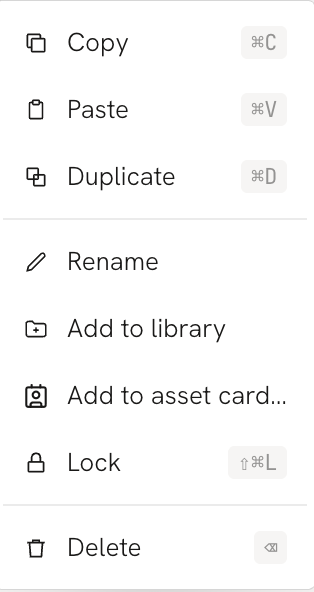
- Copy
Copies the node, so you can paste an identical node onto the canvas.
- Paste
Pastes what you copied onto the current canvas.
- Duplicate
Makes an identical copy of the node on the canvas right away, so you can reuse it quickly.
- Rename
Changes the node's name, which helps you tell different content apart and keep it organized on the canvas.
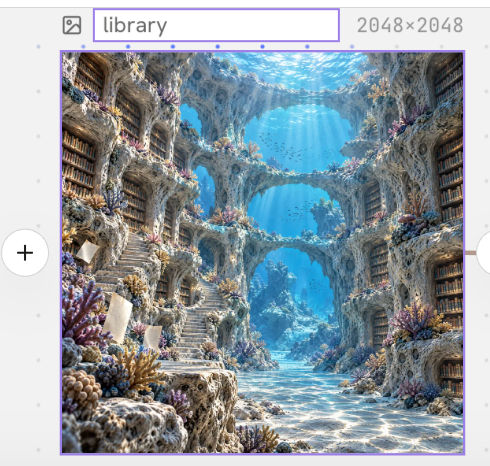
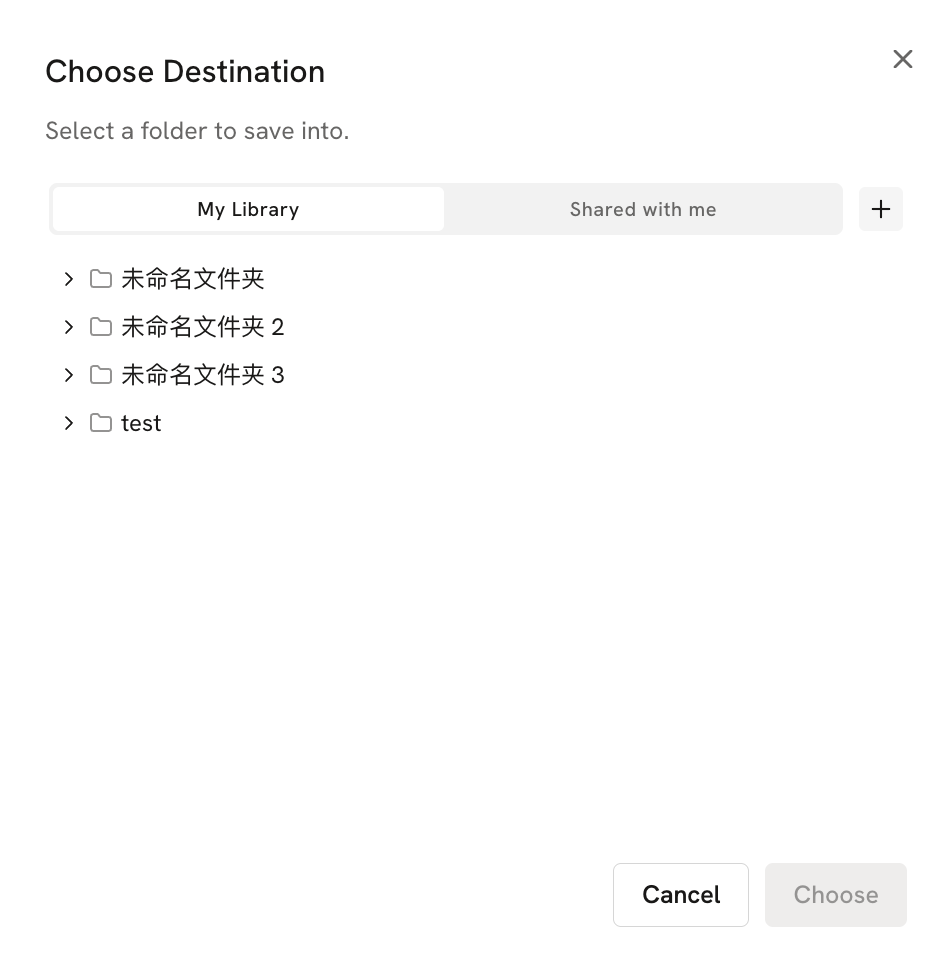
- Add to library
Adds the node's content to your Library, so you can find it and reuse it in other work later.
In the window that opens, choose where to save it.
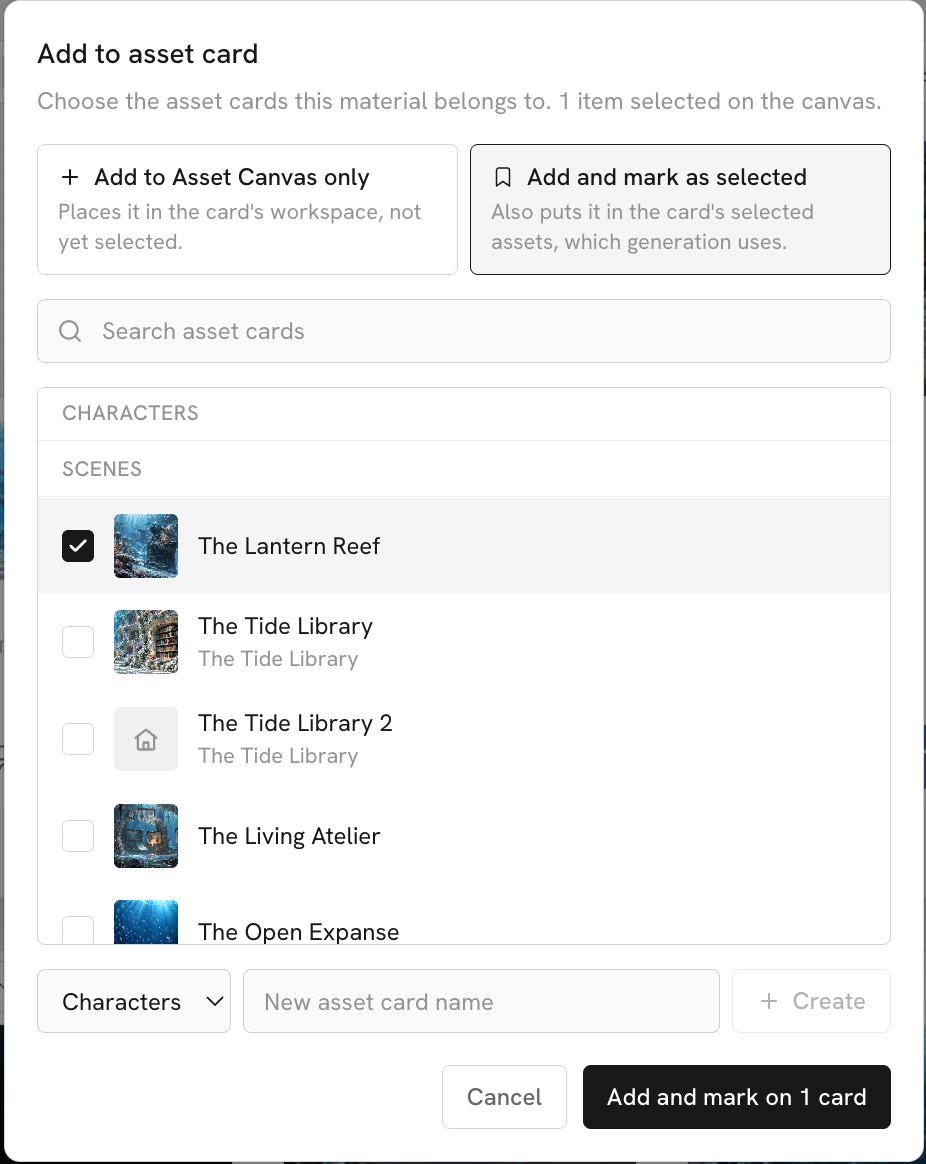
- Add to asset card…
Adds the node to an asset card, where it serves as reference media for that character, scene, prop, or other asset.
In the window that opens, choose the asset card to add it to, or create a new asset card and add it there. You can choose Add to Asset Canvas only or Add and mark as selected.
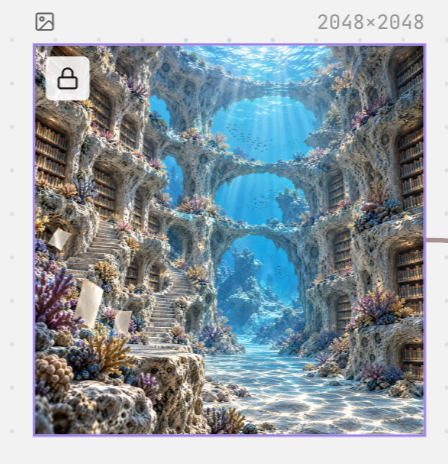
- Lock
Locks the node, so you don't move or change it by mistake while you organize the canvas.
A locked node can't be selected or moved. To unlock it, use the right-click menu or press Shift+⌘+L (Shift+Ctrl+L on Windows).
- Delete
Deletes this node. Once deleted, the node is removed from the current canvas. You can undo this with ⌘+Z (Ctrl+Z on Windows).