Chat with Moodio Agent
Start a chat with Moodio Agent
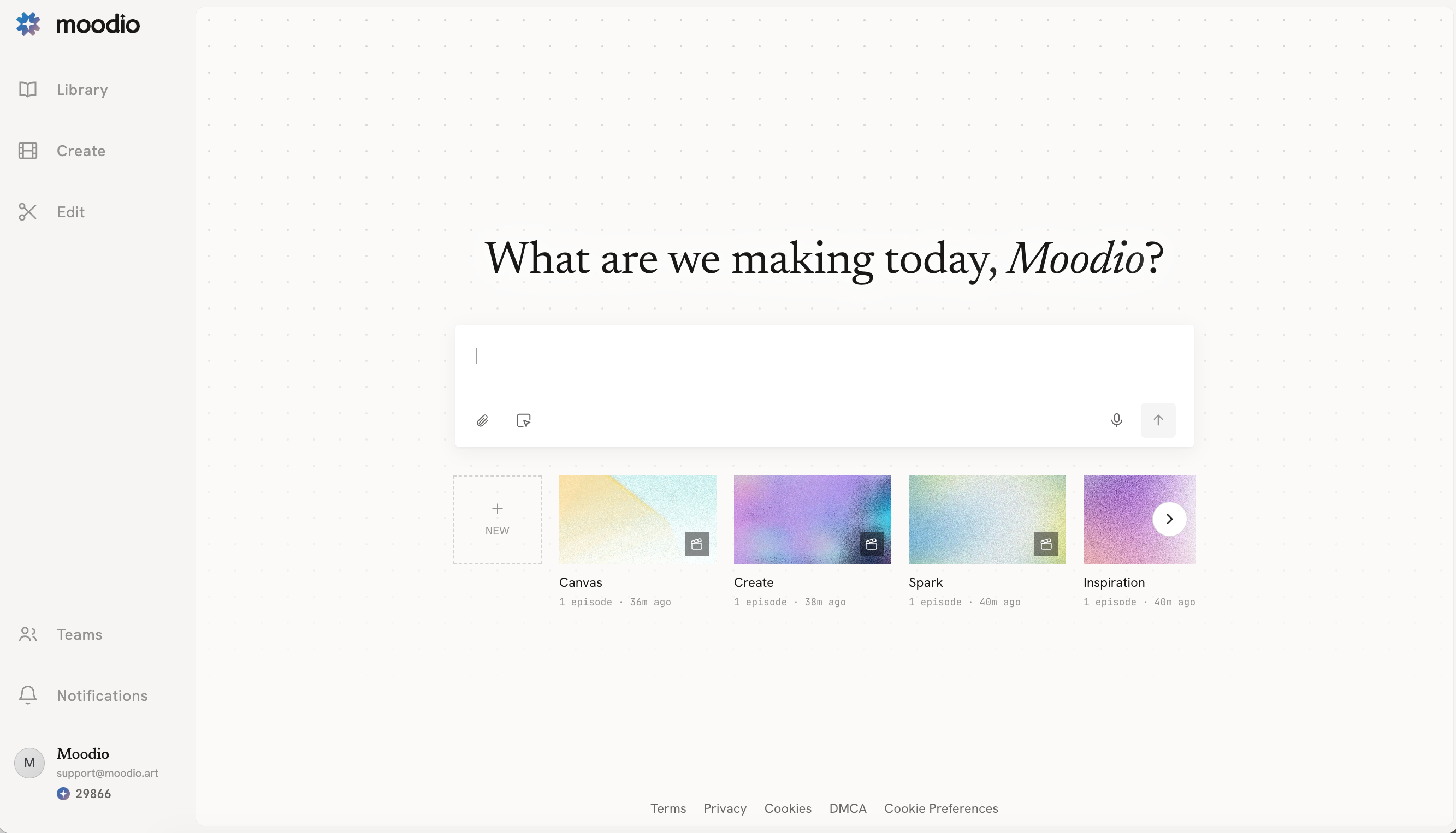
- Use the input box on the Moodio home page to start a chat with the Agent.
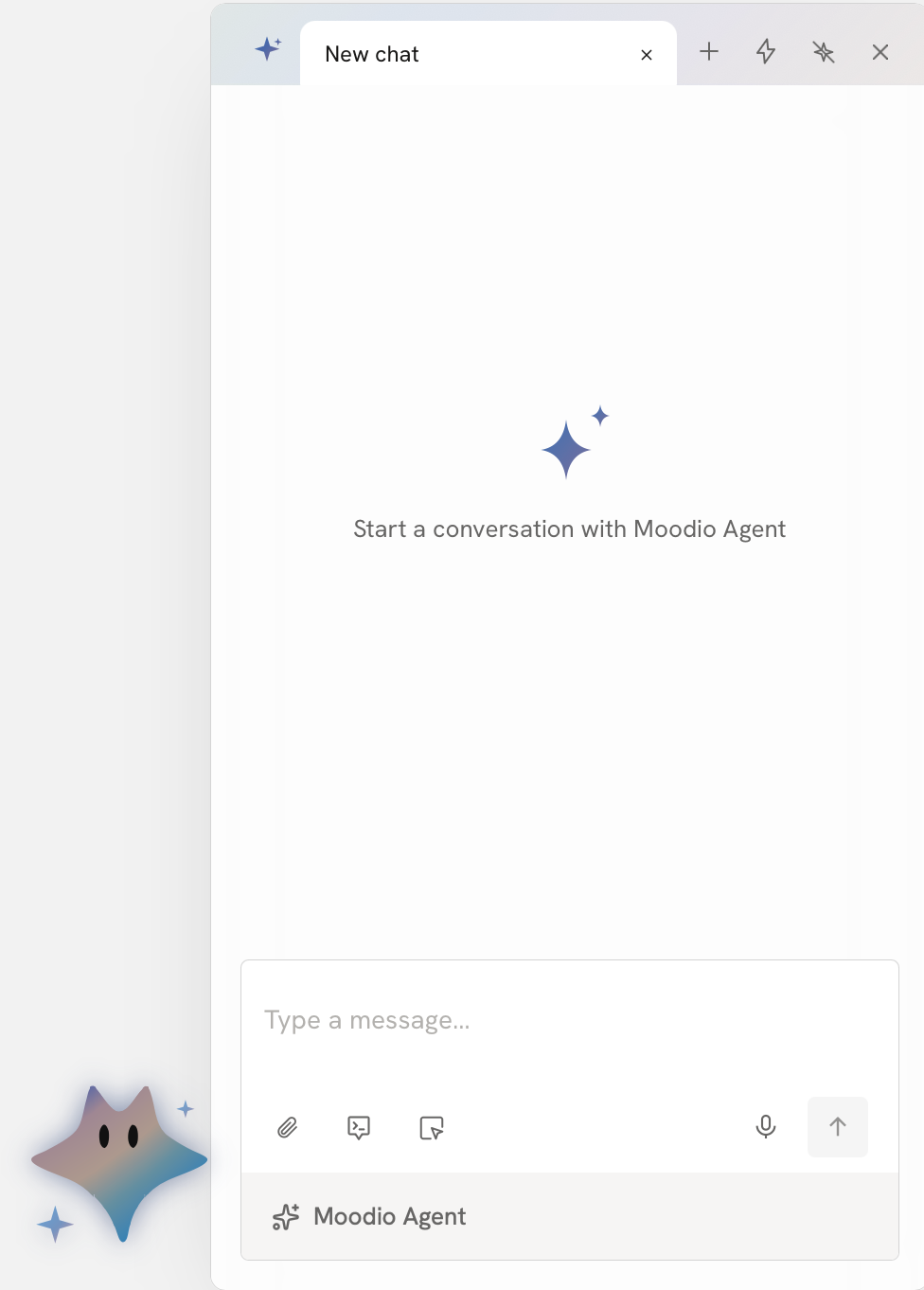
- Or click the Moodio Agent mascot to open the chat panel.
Input box features
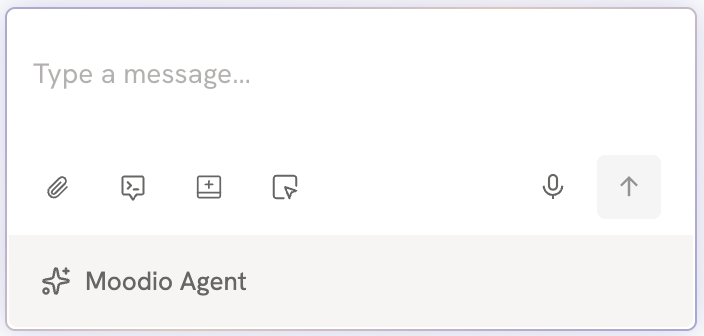
Attach files
Click Attach in the input box to upload images, videos, audio, documents, and other files, so the Agent can use them as references or work on them.
You can choose items already in your Library, upload files from your computer, capture new ones with your camera, or record audio.
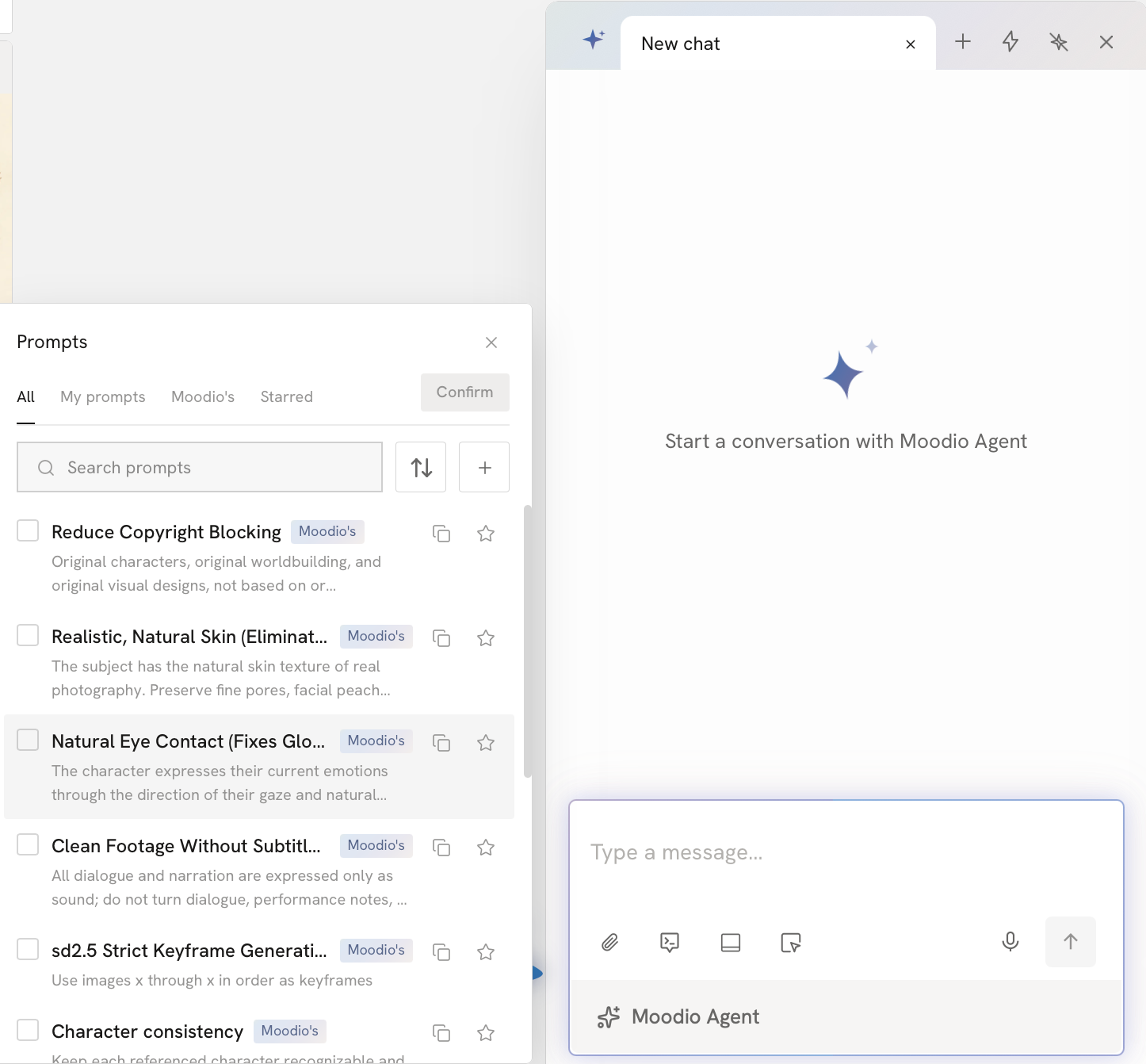
Preset prompts
Use the preset prompts that Moodio provides to send common creative requests quickly, without writing your instructions from scratch each time. You can also add the prompts you use often, so they are ready whenever you need them.
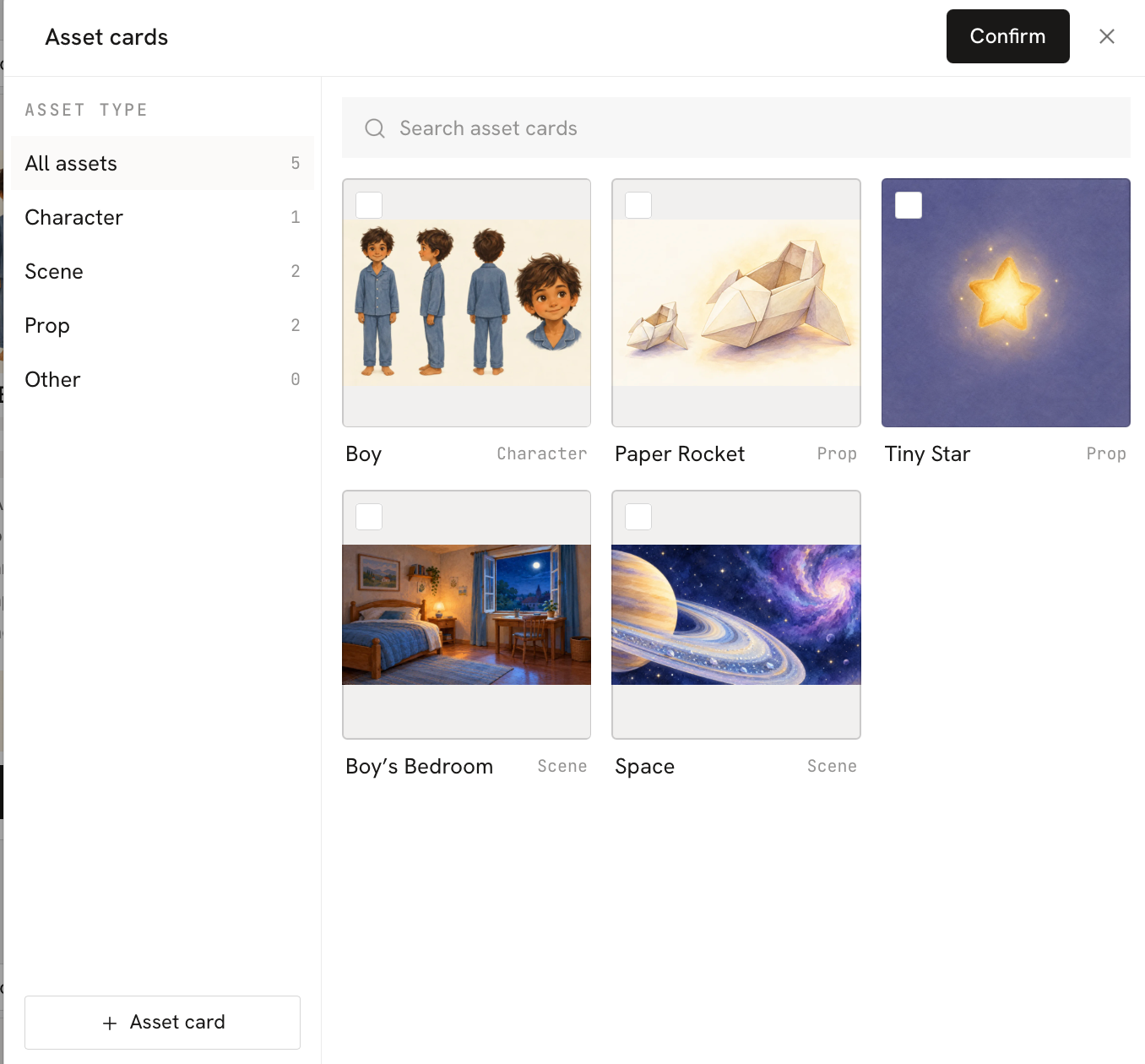
Asset cards
You can link Asset cards from your project to the current chat. The Agent then reads the information on those cards and uses the assets as references in the work that follows.
Choose the Agent mode
Choose how you approve the actions the Agent takes:
- Manual confirm: When an action needs confirmation, the Agent waits for your approval before it continues.
With Manual confirm, the Agent does not call the model right away. It first creates a generation card that holds the settings it plans to use for this generation.
On the generation card, you can review or change:
- Which model to use
- The image aspect ratio, the video duration, or other generation settings
- How many results to generate
- The image, video, audio, or file references used for this generation
Manual confirm works well when you make something for the first time, when a product or character must stay strictly consistent, when you generate long videos or a large batch of media, and for any task where you want to check the model and settings first.
- Auto generate: Lets the Agent carry out these actions on its own, without asking you to approve each one.
With Auto generate, the Agent chooses the model and settings based on your task, the references on the canvas, and the current context, and then starts generating right away. The images, videos, or audio it generates keep appearing on the canvas, and it does not stop to ask for approval each time.
It suits long, multi-step tasks where the goal is already clear. For example: put together a synopsis, then write the script and generate the assets, and finally generate the media. You do not need to adjust settings at every step. The Agent can move the task forward on its own.
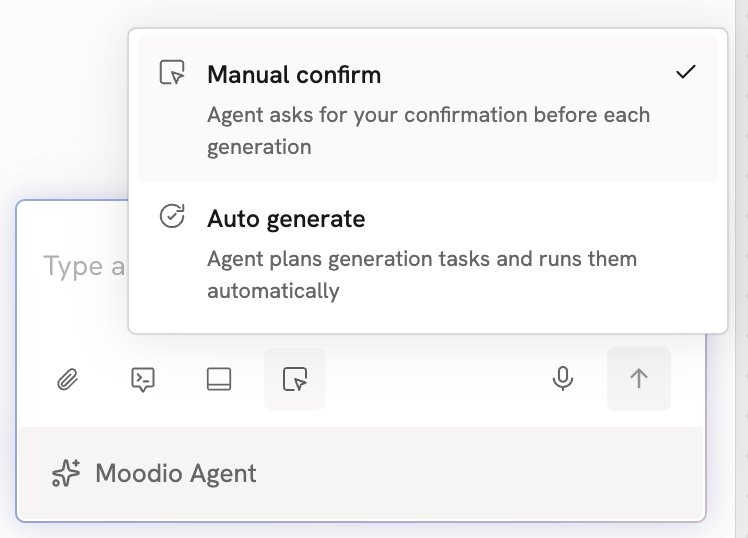
Use Auto generate if you want the Agent to work through a series of steps without stopping. Use Manual confirm if you want to look at the model, aspect ratio, duration, and number of results before each generation.
In either mode, credits are used as usual each time a model actually generates an image, video, or audio, based on the model and settings chosen. Manual confirm only means that the credits are used after you click Generate. It does not make that generation free.
Voice input
Click Voice input to make your request to the Agent by speaking, without typing.
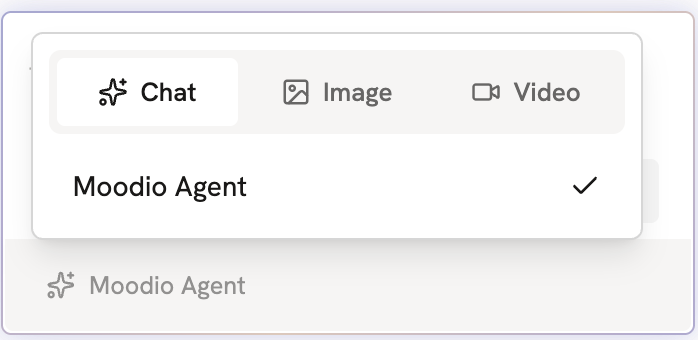
Choose a mode
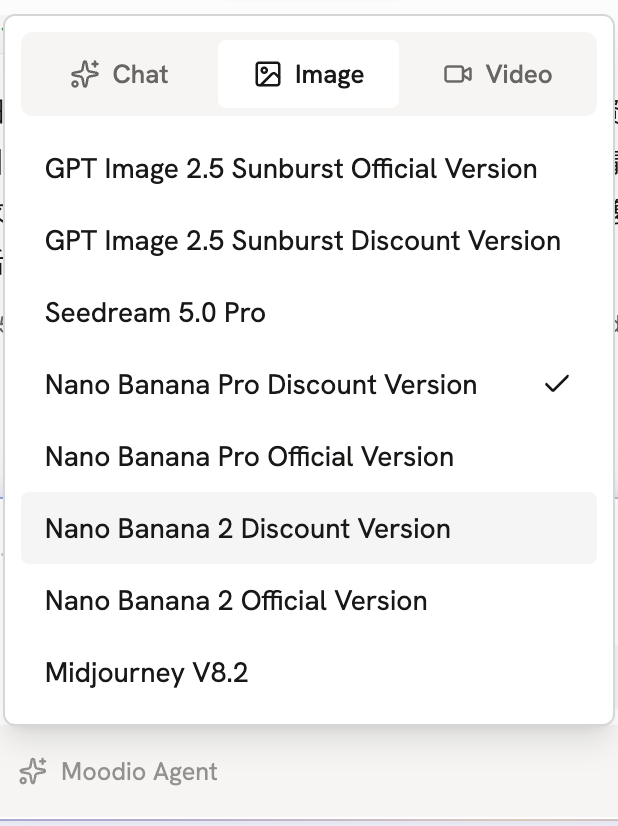
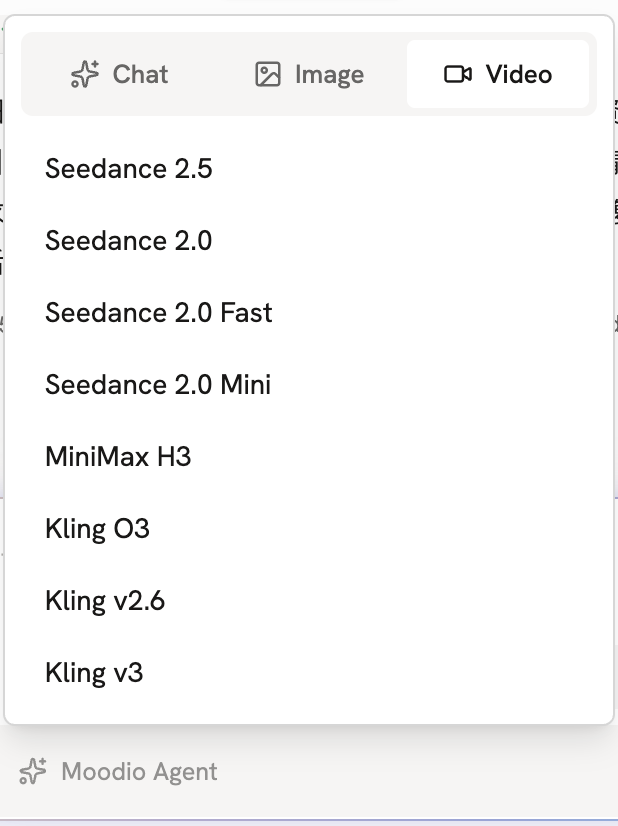
You can choose to chat with Moodio Agent, or pick an image or video generation model right in the input box to start creating.
Chat panel features
Use skills
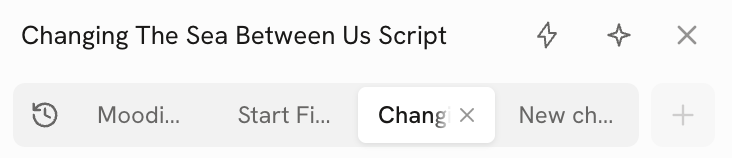
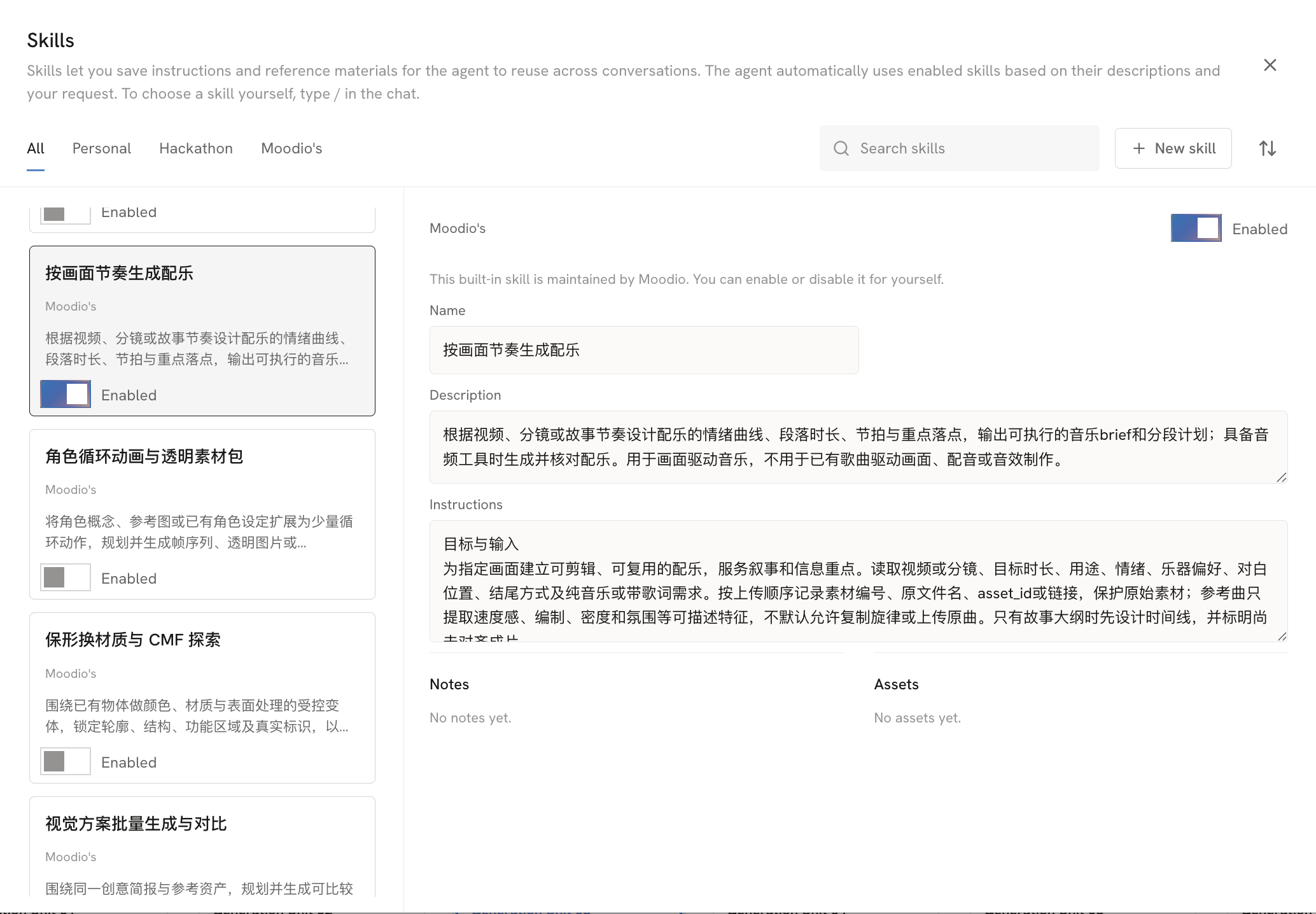
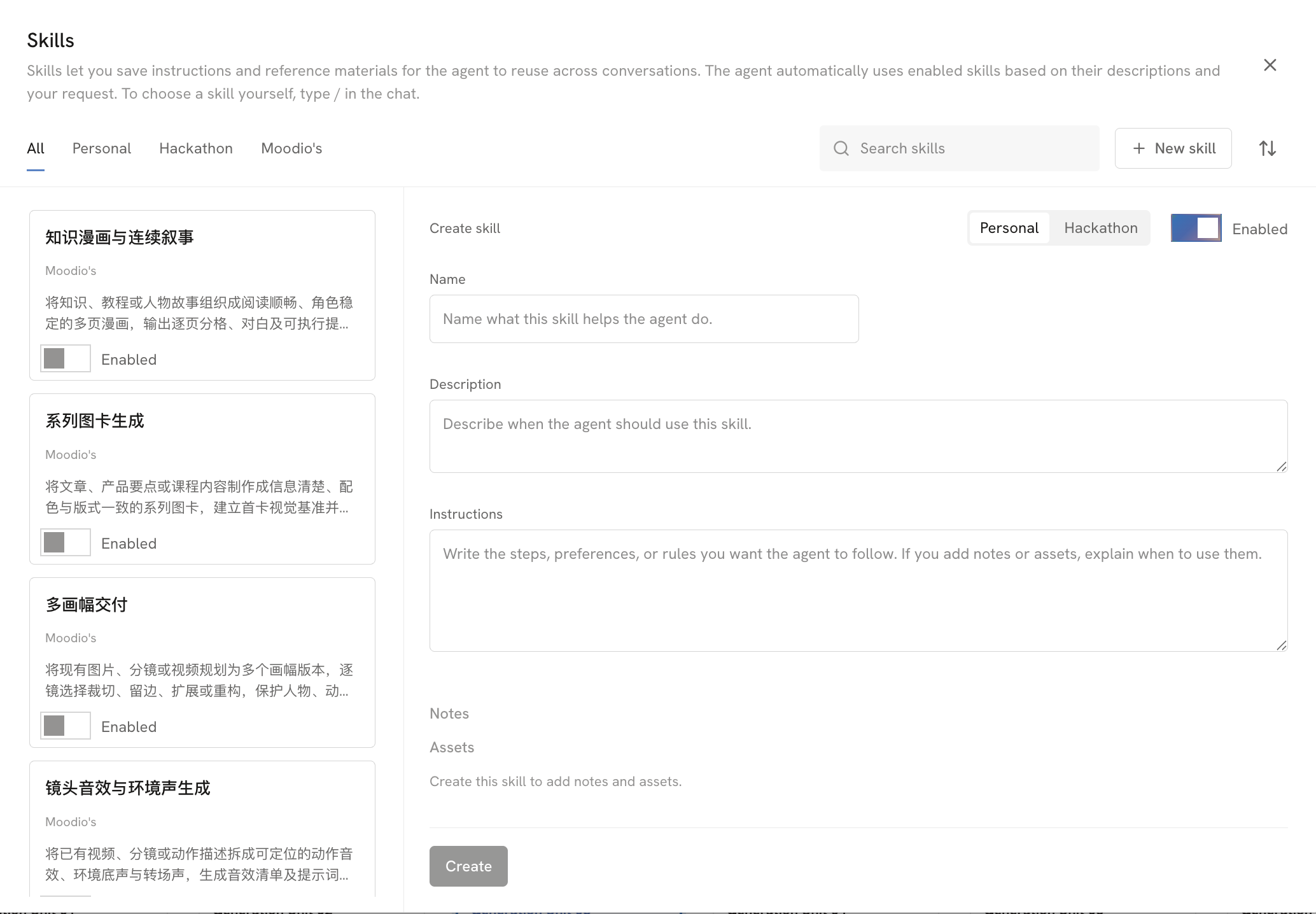
Click the lightning bolt icon at the top right to use the Skills available to you.
A skill gives the Agent a specific ability or workflow, so it can carry out the right task for what you need. Moodio offers a selection of skills for you to choose from.
Click New skill at the top right to create your own skill and save it to your personal skill library.
Follow the Agent
Click the four-pointed star icon at the top right to choose whether to follow what the Agent does.
Follow the Agent: When the Agent works on the canvas, your view moves to the place where it is working, so you can see what it is handling right now.
Don't follow: Your view stays where it is and does not move with the Agent.
Turn on following if you want to see what the Agent is doing as it happens. Turn it off if you want to focus on your own work and let the Agent work in the background.
New chat
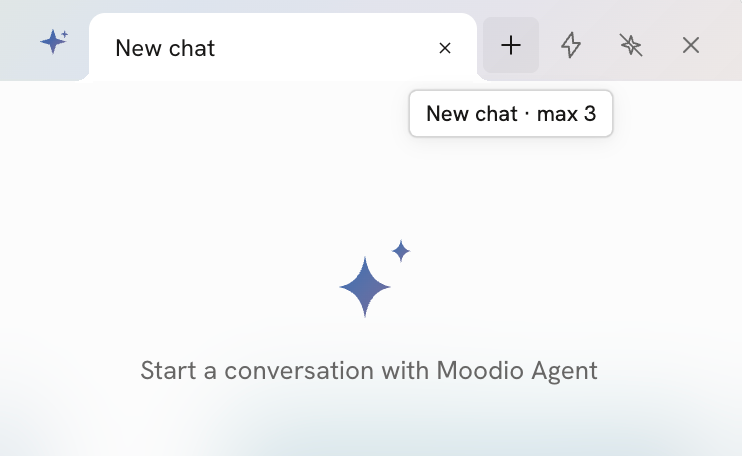
Click “+” at the top right to start a new chat.
A new chat is a separate conversation. Use it for a new creative request or a different task, so that different topics do not get mixed up.
Work on several tasks at once
You can have up to 3 chat tabs open with Moodio Agent at once. The Agent's tasks in different chats run at the same time, so you do not need to wait for one task to finish before you switch to another.
View and manage past chats
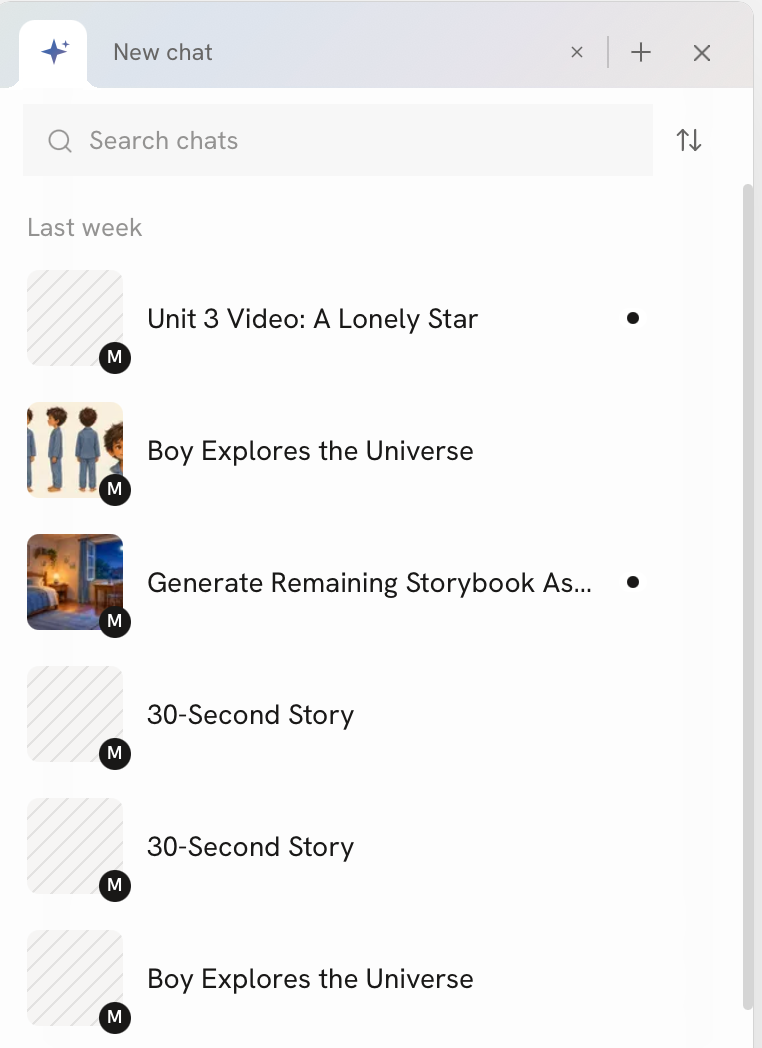
Your past chats with the Agent are kept. Click Chat history at the top left of the chat panel to look back at earlier chats at any time, or open one and continue the conversation.
If you have many past chats, use search: type a chat's name or a related keyword to find the chat you need.
If 3 chats are already open, close one of their tabs before you open another past chat.